> ## Documentation Index
> Fetch the complete documentation index at: https://docs.tracecat.com/llms.txt
> Use this file to discover all available pages before exploring further.
# Human-in-the-loop
> `tool_approvals` and the agent inbox to review tool calls before they run.
Open source
Require approval for tools that change data, contact users, or reach external systems.
The agent pauses before it calls an approval-gated tool, and a reviewer approves, edits, or denies the call from the agent inbox.
## Require approval for tools
Choose where to set approvals based on how you run the agent:
* Agent presets (recommended): Open the preset, select the `Tools` tab, expand the tool's group, and set the tool to `Ask`. Every `ai.preset_agent` run and chat with the preset uses that setting.
* MCP integrations: Turn on `Approval` for a tool on a remote MCP integration. Approvals are not supported for `stdio` MCP servers.
* `ai.agent`: Set `tool_approvals` on the action. Keys are action names, and `true` requires approval.
For example, set `core.cases.update_case` to `Ask` on a `case-triage` preset, then run it from a workflow:
```yaml theme={null}
- ref: triage_case
action: ai.preset_agent
args:
preset: case-triage
user_prompt: |
Summarize the latest evidence for case ${{ TRIGGER.case_id }} and update the case.
```
The agent pauses before it calls `core.cases.update_case` and waits for a decision in the inbox.
A pause for a tool approval does not count toward the agent timeout.
The workflow-level `timeout` still bounds the whole run, including approval waits.
## Set approvals on a preset
Each tool in a preset's `Tools` tab has a toggle:
* `Auto`: The agent calls the tool without asking.
* `Ask`: The agent pauses before the call and waits for a decision in the inbox.
Click the toggle to switch a tool, then click `Publish version` in the top right.
To change a whole group, right-click it and choose `Require approval for all` or `Run all automatically`.
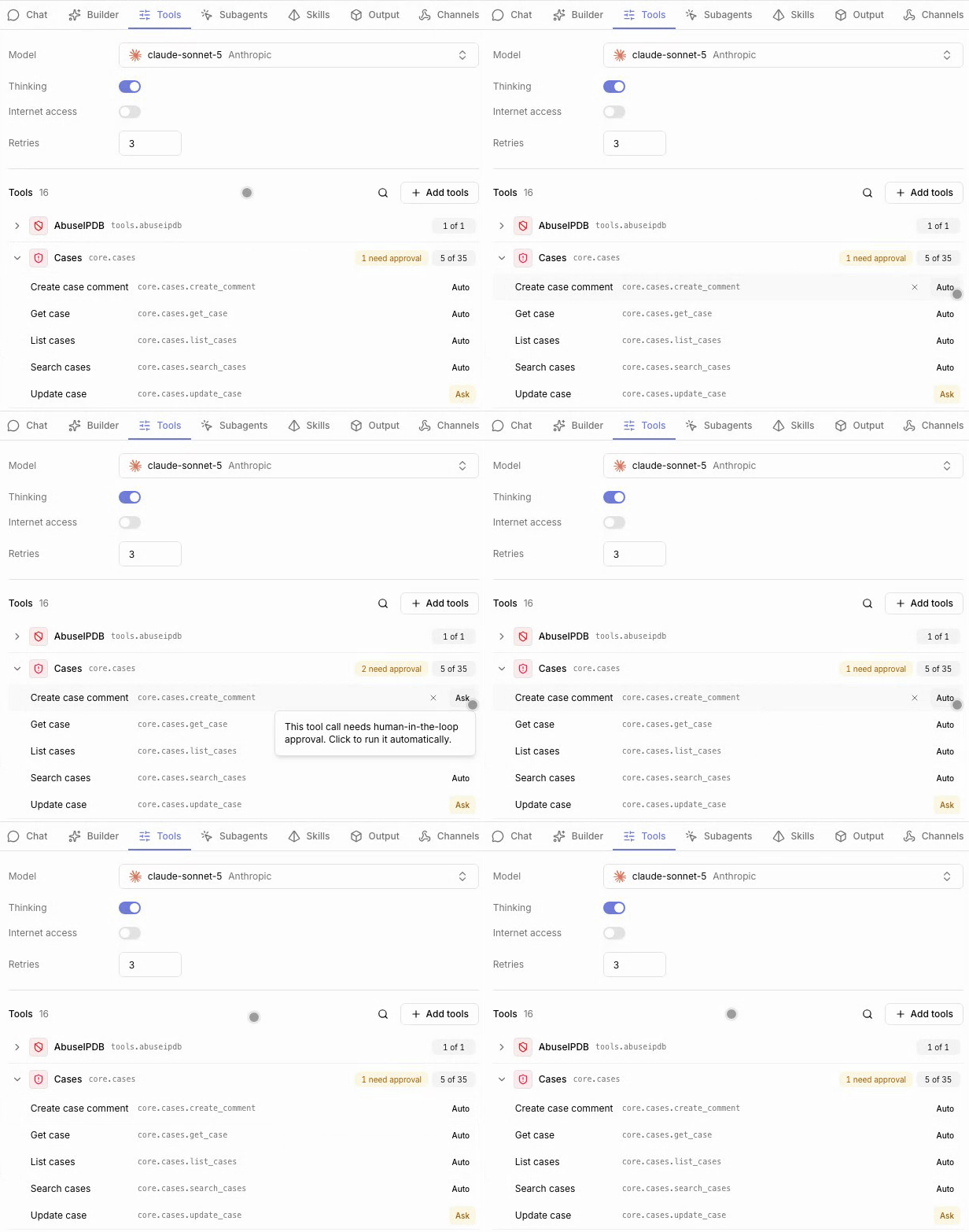 A group with tools on `Ask` shows a badge such as `1 need approval`.
Tools from attached skills appear under `From skills` with the same toggle.
An MCP integration row shows the same badge for tools that require approval on the integration.
## Review tool calls in the inbox
Open `Inbox` from the workspace navigation.
Runs waiting on a decision appear under `Review required`, and the sidebar badge shows how many are pending.
Your workspace role needs `inbox:read` to open the inbox.
1. Select a run to open its session and the pending tool call.
2. Choose `Approve`, `Edit + approve` to change the tool arguments, or `Deny` with an optional reason.
3. Click `Submit`.
An approved call runs and the agent continues.
A denied call does not run, and the agent stops instead of retrying the tool.
## Availability
Tool approvals and the agent inbox are open source.
Enterprise Edition
Enterprise adds:
* Chatting with agents and approving tool calls from Slack through [agent channels](/agents/channels).
* `View agent runs` on a case, which opens the inbox filtered to agent runs for that case.
## Related pages
* See [AI preset agent](/agents/ai-preset-agent#add-tools) to add the tools you set to `Ask`.
* See [AI agent](/agents/ai-agent) for the `tool_approvals` input on inline agents.
* See [MCP servers](/automations/integrations/mcp-integrations) to require approval for MCP tools.
This documentation is built and hosted on [Mintlify](https://mintlify.com), a developer documentation platform.
A group with tools on `Ask` shows a badge such as `1 need approval`.
Tools from attached skills appear under `From skills` with the same toggle.
An MCP integration row shows the same badge for tools that require approval on the integration.
## Review tool calls in the inbox
Open `Inbox` from the workspace navigation.
Runs waiting on a decision appear under `Review required`, and the sidebar badge shows how many are pending.
Your workspace role needs `inbox:read` to open the inbox.
1. Select a run to open its session and the pending tool call.
2. Choose `Approve`, `Edit + approve` to change the tool arguments, or `Deny` with an optional reason.
3. Click `Submit`.
An approved call runs and the agent continues.
A denied call does not run, and the agent stops instead of retrying the tool.
## Availability
Tool approvals and the agent inbox are open source.
Enterprise Edition
Enterprise adds:
* Chatting with agents and approving tool calls from Slack through [agent channels](/agents/channels).
* `View agent runs` on a case, which opens the inbox filtered to agent runs for that case.
## Related pages
* See [AI preset agent](/agents/ai-preset-agent#add-tools) to add the tools you set to `Ask`.
* See [AI agent](/agents/ai-agent) for the `tool_approvals` input on inline agents.
* See [MCP servers](/automations/integrations/mcp-integrations) to require approval for MCP tools.
This documentation is built and hosted on [Mintlify](https://mintlify.com), a developer documentation platform.