> ## Documentation Index
> Fetch the complete documentation index at: https://docs.tracecat.com/llms.txt
> Use this file to discover all available pages before exploring further.
# Case durations
> Measure elapsed time between case events, such as time to triage or time to resolution, and read the results from workflows.
Enterprise Edition
Durations measure the time between two case events, such as `Time to triage` from case creation until the status changes to `In progress`.
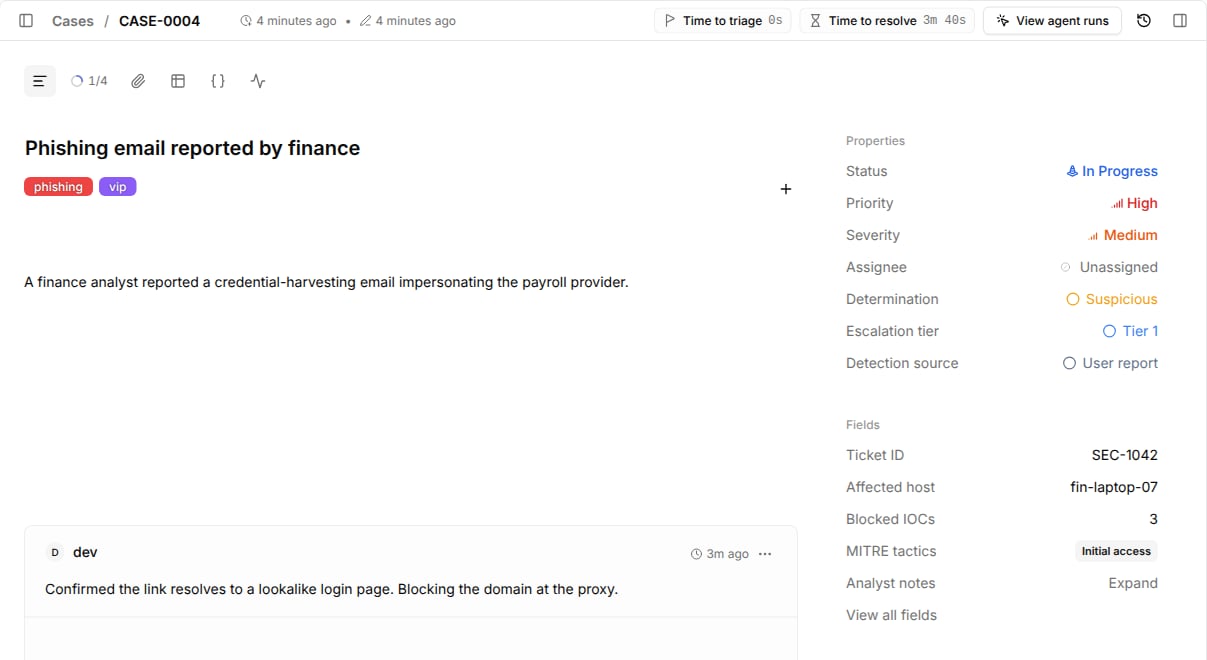
Tracecat calculates every duration on every case and shows it in the case header.
 ## Create a duration
1. Go to `Cases` and open the durations view from the header toolbar.
2. Select `Add duration`.
3. Enter a name and an optional description.
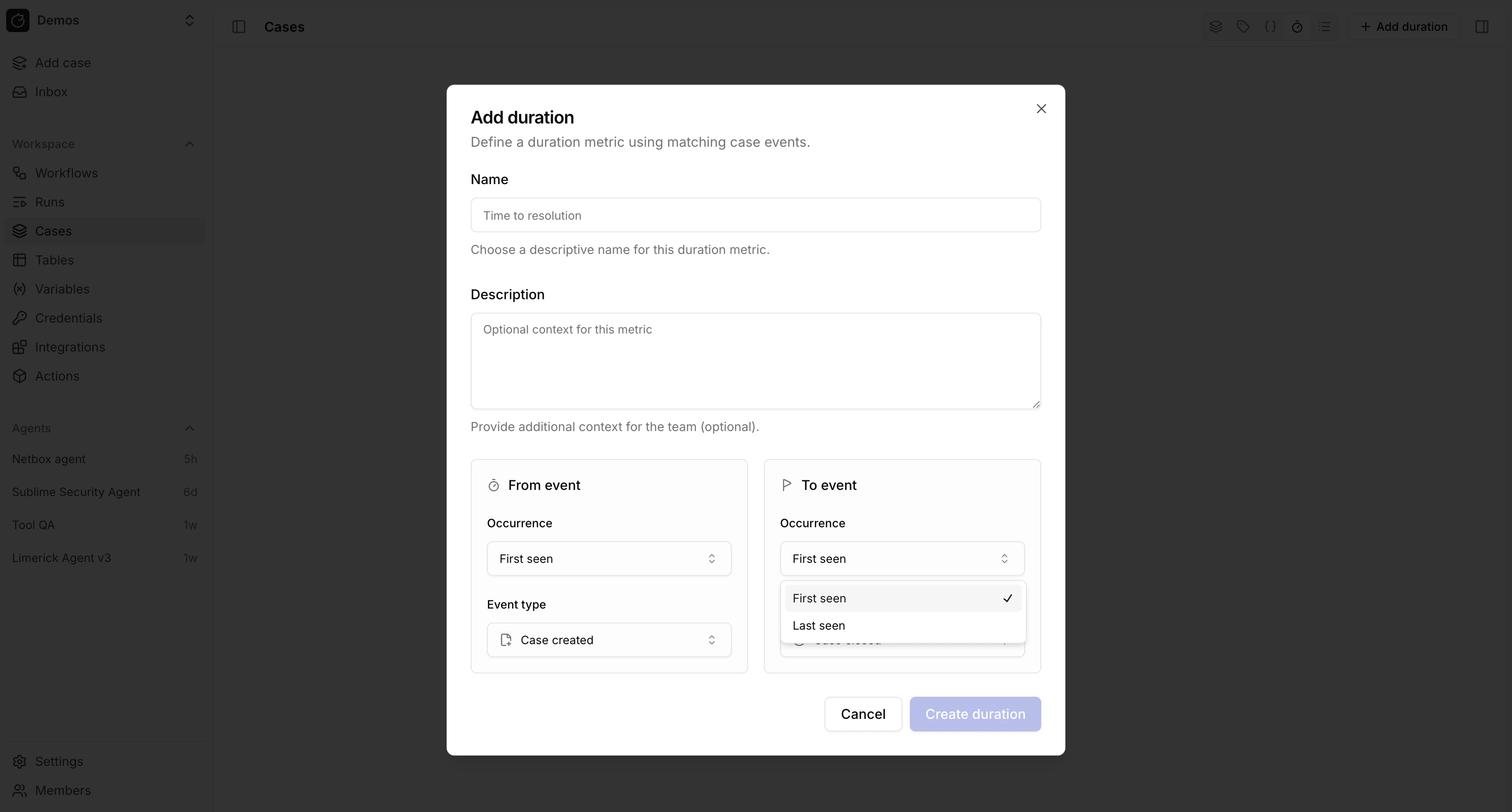
4. Configure the `From event` that starts the clock and the `To event` that stops it.
## Create a duration
1. Go to `Cases` and open the durations view from the header toolbar.
2. Select `Add duration`.
3. Enter a name and an optional description.
4. Configure the `From event` that starts the clock and the `To event` that stops it.
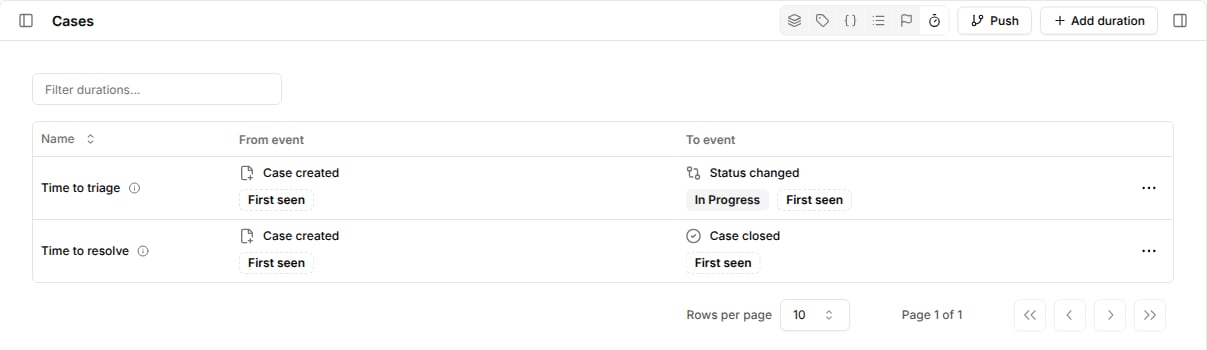
 The durations view lists each duration with its start and end events.
 ## Configure events
Each event has an event type, optional filters, and an occurrence.
| Event type | Filter |
| - | - |
| `Case created`, `Case updated`, `Case closed`, `Case reopened`, `Case viewed` | None |
| `Priority changed`, `Severity changed`, `Status changed` | New value, such as status `In progress` |
| `Assignee changed` | None |
| `Tag added`, `Tag removed` | Tag |
| `Custom field changed` | Custom field |
| `Dropdown value changed` | Dropdown and option, such as `Escalation tier` → `Tier 2` |
| `Comment added`, `Comment deleted`, `Comment reply added`, `Comment reply deleted` | None |
Occurrence picks which matching event anchors the duration:
* `First seen` uses the earliest matching event. Use it for first-response metrics such as time to triage.
* `Last seen` uses the most recent matching event. Use it when an event can repeat, such as time from the last reopen to close.
A duration starts once its `From event` happens and finishes once its `To event` happens.
Until then, the case header shows the time elapsed so far.
## Example durations
| Duration | From | To |
| - | - | - |
| Time to triage | `Case created`, first seen | `Status changed` to `In progress`, first seen |
| Time to assign | `Case created`, first seen | `Assignee changed`, first seen |
| Time to escalate | `Case created`, first seen | `Dropdown value changed` to `Tier 2`, first seen |
| Time to resolve | `Case created`, first seen | `Case closed`, last seen |
## Read durations from workflows
Use `core.cases.get_case_metrics` to read durations for one or more cases as time-series data for reporting.
```yaml theme={null}
- ref: case_metrics
action: core.cases.get_case_metrics
args:
case_ids:
- ${{ TRIGGER.case_id }}
```
## Related pages
* See [Dropdowns](/automations/cases/dropdowns) to create the classifications you measure with `Dropdown value changed`.
* See [Cases](/automations/core-actions/case-actions/cases) for the `get_case_metrics` output format.
This documentation is built and hosted on [Mintlify](https://mintlify.com), a developer documentation platform.
## Configure events
Each event has an event type, optional filters, and an occurrence.
| Event type | Filter |
| - | - |
| `Case created`, `Case updated`, `Case closed`, `Case reopened`, `Case viewed` | None |
| `Priority changed`, `Severity changed`, `Status changed` | New value, such as status `In progress` |
| `Assignee changed` | None |
| `Tag added`, `Tag removed` | Tag |
| `Custom field changed` | Custom field |
| `Dropdown value changed` | Dropdown and option, such as `Escalation tier` → `Tier 2` |
| `Comment added`, `Comment deleted`, `Comment reply added`, `Comment reply deleted` | None |
Occurrence picks which matching event anchors the duration:
* `First seen` uses the earliest matching event. Use it for first-response metrics such as time to triage.
* `Last seen` uses the most recent matching event. Use it when an event can repeat, such as time from the last reopen to close.
A duration starts once its `From event` happens and finishes once its `To event` happens.
Until then, the case header shows the time elapsed so far.
## Example durations
| Duration | From | To |
| - | - | - |
| Time to triage | `Case created`, first seen | `Status changed` to `In progress`, first seen |
| Time to assign | `Case created`, first seen | `Assignee changed`, first seen |
| Time to escalate | `Case created`, first seen | `Dropdown value changed` to `Tier 2`, first seen |
| Time to resolve | `Case created`, first seen | `Case closed`, last seen |
## Read durations from workflows
Use `core.cases.get_case_metrics` to read durations for one or more cases as time-series data for reporting.
```yaml theme={null}
- ref: case_metrics
action: core.cases.get_case_metrics
args:
case_ids:
- ${{ TRIGGER.case_id }}
```
## Related pages
* See [Dropdowns](/automations/cases/dropdowns) to create the classifications you measure with `Dropdown value changed`.
* See [Cases](/automations/core-actions/case-actions/cases) for the `get_case_metrics` output format.
This documentation is built and hosted on [Mintlify](https://mintlify.com), a developer documentation platform.