

agent_channels_preview) to add Tracecat to Slack or use the custom app setup below. Organizations with only agent_channels use the earlier setup flow. To change routes or connect an app, you need agent:update in the workspace.
Capabilities
- Direct messages: the agent answers every message.
- Channels: the agent answers messages that mention it, in channels you invited it to.
- Threads: each thread is one agent session, so the agent remembers earlier turns in that thread.
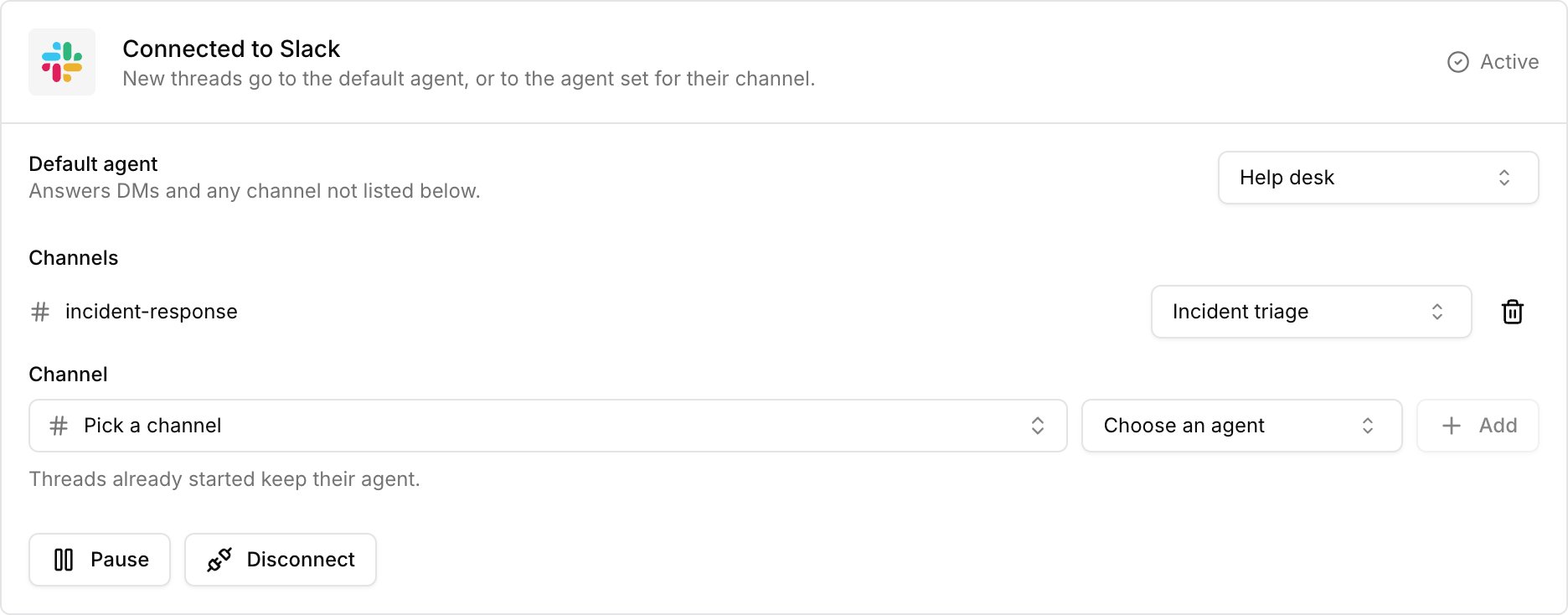
- Channel routing: each channel can have its own agent. The default agent answers direct messages and channels without a route.
- Tool approvals: approve or deny a tool call from the thread. The card then shows who decided.
Choose which agent answers
InAgents → # (Channels), the Default agent answers direct messages and channels without a route. Add a route for any channel that needs a different agent.
- Select
Pick a channel. Search by name or paste the channel ID from Slack. - Choose the agent and click
Add. In Slack, run/invite @Tracecatin that channel, then mention@Tracecatto start a thread.
Pause, reconnect, or move the app
Pause, reconnect, or move the app
Click
Pause to stop replies and Resume to restart them. If Connected to Slack shows Needs reconnect, click Reconnect and approve the app in Slack.For a custom app, click Manage to find Pause, Resume, and Disconnect. If it shows Needs reconnect, click Reconnect to Slack in that dialog. If it shows Update needed, first copy the manifest under Slack settings for this app to the app’s App Manifest page in Slack, then click Reconnect to Slack.To connect the Slack workspace to a different Tracecat workspace, first click Disconnect in the current one.Connect a Slack app
Each custom app has its own bot name and icon and counts toward Slack’s installation limit.- Open the preset’s
Channelstab. UnderCustom Slack app, clickConnect. - Choose a bot name, click
Create in Slack, and create the app. - From Slack’s
Basic Information → App Credentials, copy the client ID, client secret, and signing secret into Tracecat. - Click
Connect to Slackand approve. In Slack, invite the bot by name with/invite, then mention it to start a thread.
Socket Mode tokens and manual app setup
Socket Mode tokens and manual app setup
For Socket Mode, generate an app-level token with 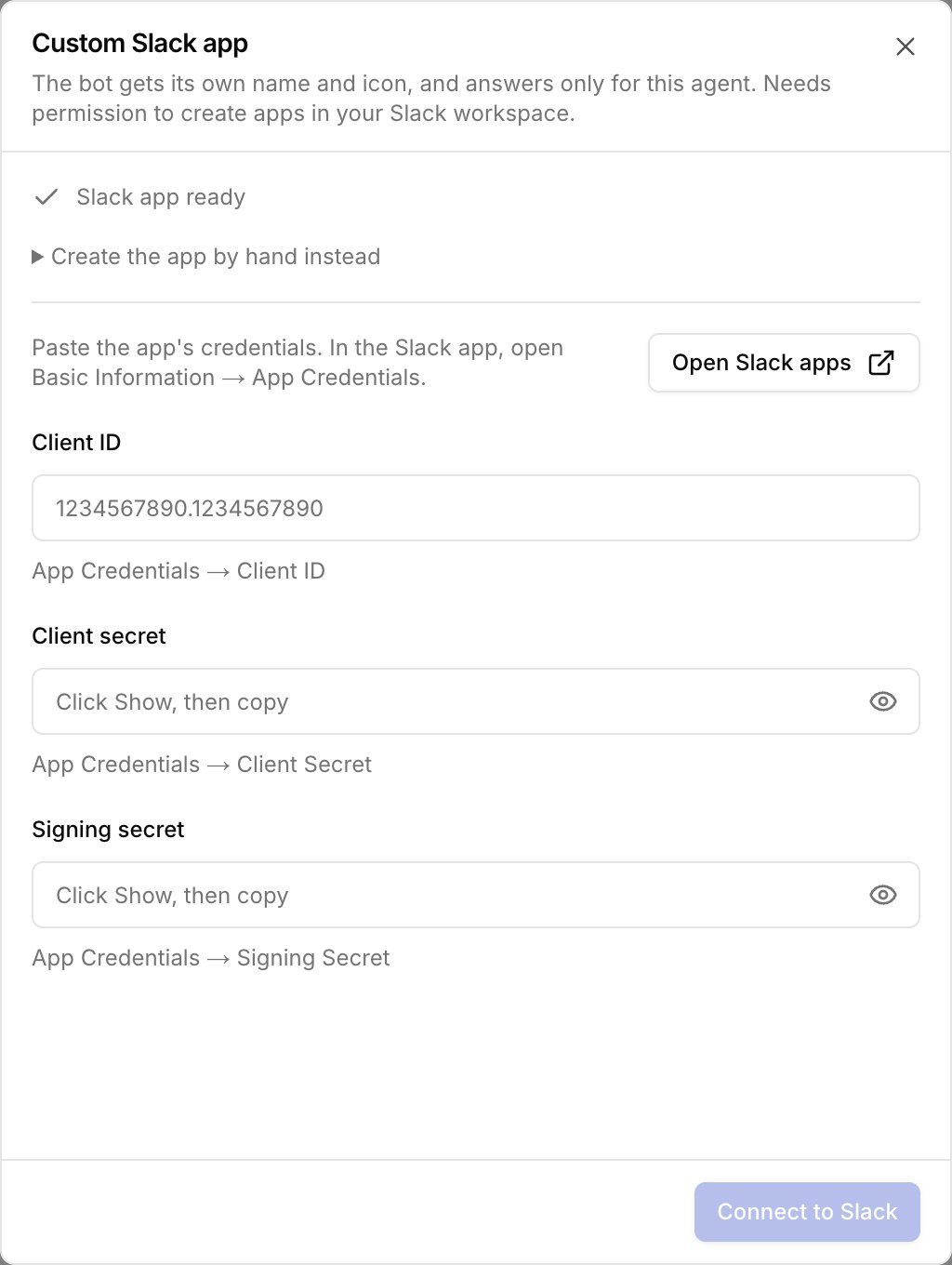
connections:write and enter its access and refresh tokens.Create the app by hand instead, apply it in Slack, and select I already have the app in Tracecat. See Slack’s manifest guide.Earlier setup flow
Earlier setup flow
Organizations with
agent_channels alone see Create app and Existing App.- Choose
Create appto copy the manifest into Slack. Install the app, then clickNextin Tracecat. - Choose
Existing Appfor an app dedicated to this preset. Add the OAuth redirect URL underOAuth & Permissions. Use the endpoint URL for events and interactivity, and subscribe toapp_mention.
Connect to Slack. If you rotate the endpoint later, update both request URLs in Slack.Limitations
- In a channel thread, mention the agent in every message you want it to answer. The agent doesn’t receive messages that don’t mention it.
- The agent reads message text only, not files or attachments.
- While a tool call awaits approval, the agent doesn’t accept new messages in that thread.
- To edit a tool call’s arguments before you approve it, use the agent inbox.
- Each Slack workspace connects to one Tracecat workspace through the platform app.