

Build cases
Shape the case record so every case captures the data your team needs.Custom fields
Store ticket IDs, affected hosts, verdicts, and notes on every case.
Dropdowns
EE
Add colored classifications that become case list filters.
Closure requirements
EE
Require fields and dropdowns before a case is closed or resolved.
Durations
EE
Measure time to triage, time to resolve, and other intervals.
Resolve cases
Work a case to closure with analysts, agents, and workflows.Linked rows
Link indicators, assets, and detections from tables.
Case tasks
EE
Assign follow-up work and start workflows from tasks.
Agent mentions
EE
Mention a preset agent in a comment to investigate the case.
Correlations
EE
Find other cases that link the same indicator, asset, or detection.
Workflow triggers
EE
Run workflows on case events, from tasks, or with
/ commands.Working with cases
Use a case when you need a durable investigation record instead of a single workflow run. Your workflows can create or update a case, attach evidence, add comments, and move the case forward as new context arrives.- Track the current owner, severity, priority, and status in one place
- Add comments and replies so analysts and workflows share the same timeline
- Store evidence as attachments instead of passing large blobs between actions
- Link structured rows, tasks, and durations to keep investigation context organized
Tags
Tags help you group and find related cases. You can use them to label incidents by team, detection source, campaign, environment, or any other shared dimension.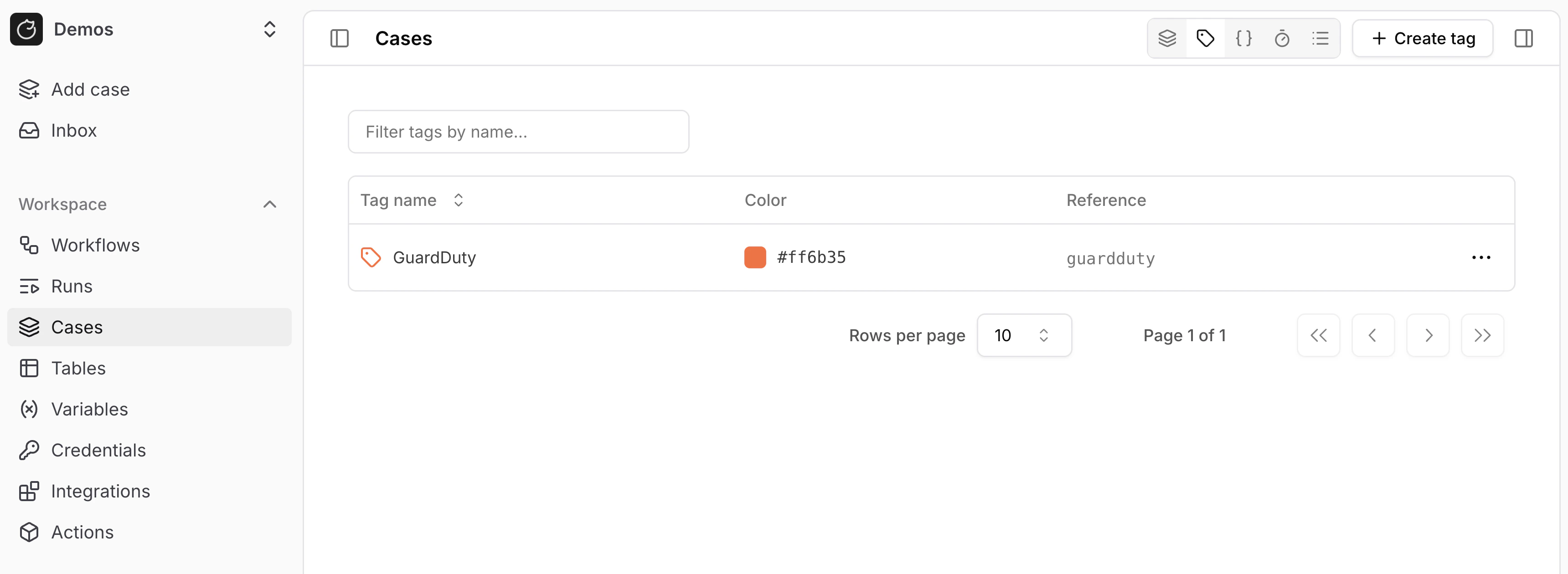
core.cases.create_case and core.cases.update_case.
Case actions
Usecore.cases.* actions when you want your workflows to create or update cases.
Case descriptions and comments support Markdown whether you write them in the case UI or pass them to an action.
Use the description input for case descriptions and the content input for comments and replies.
You can include standard Markdown formatting, Markdown tables, and Mermaid diagrams.
To add a diagram, wrap valid Mermaid syntax in a fenced code block labeled mermaid.
Each group of case actions has its own reference page:
- Cases to create, fetch, update, search, and delete cases, assign users, apply tags, and read metrics
- Comments to add, reply to, update, and list comments and comment threads
- Attachments to upload, list, download, and delete case attachments
- Tasks to create, update, and list case tasks
- Linked rows to link table rows to a case and read them back
Trigger agents
Mention a preset agent
Enterprise Type@ in a comment to have a preset agent investigate the case and reply in the thread. See Agent mentions to configure access and follow the run.
An agent can also call a workflow as a tool. When you need fixed order, deterministic branching, or guaranteed steps, run the workflow from a workflow trigger instead.
Use the in-case copilot
Open source Use the copilot inside a case to summarize activity and draft next steps. It draws from the case timeline, linked evidence, and workflow output.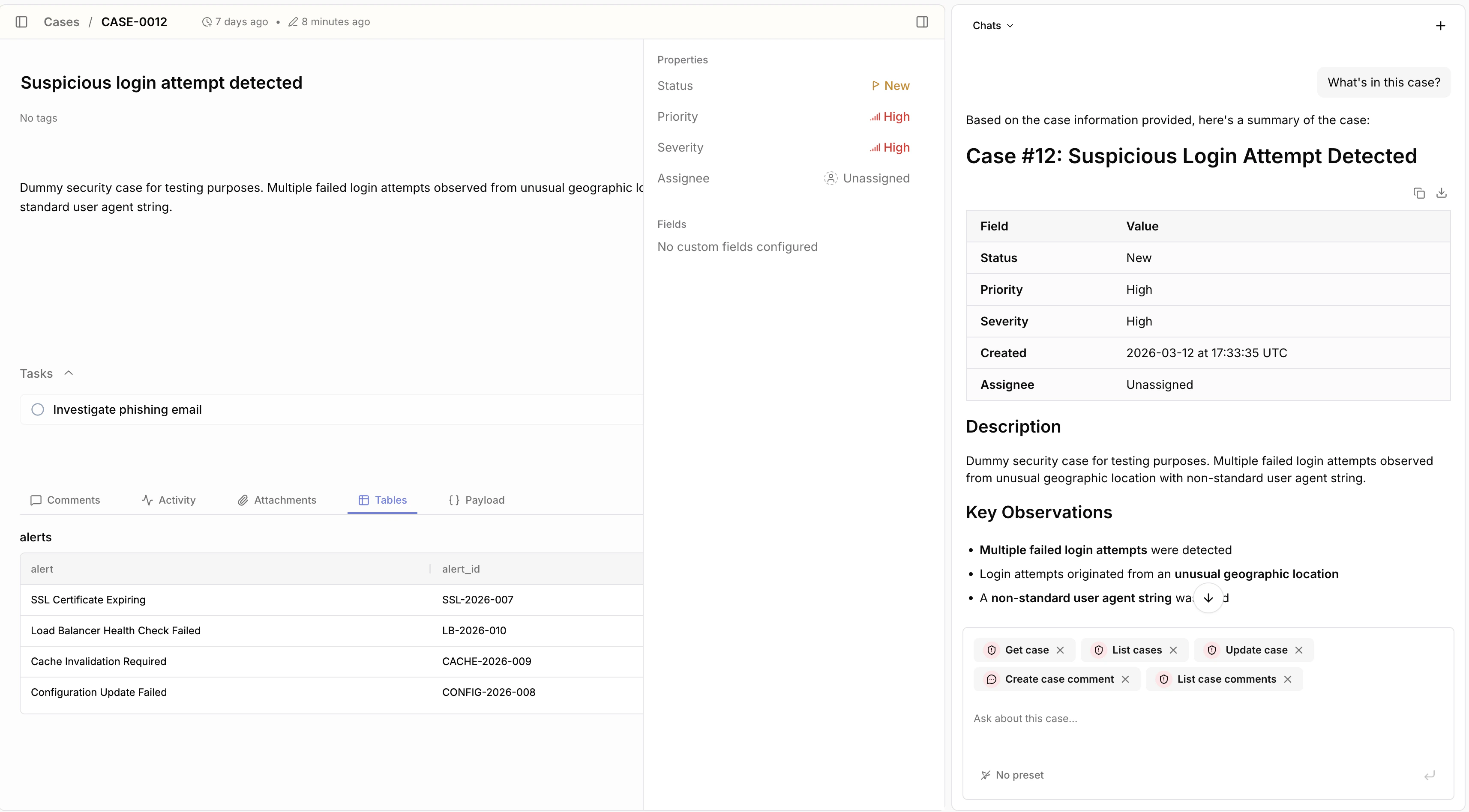
Correlate across cases
Enterprise Enterprise extends the copilot beyond a single case. Use it to correlate related cases, compare investigation history, and surface patterns across incidents.- Correlate repeated alerts across multiple cases
- Spot shared indicators, assets, or actors
- Find similar investigations before you start a new one
- Build broader investigation context across your case queue