

Overview
Use Git sync to export workspace configuration to a repository you own as a pull request, then pull a reviewed commit into a workspace.Permissions
Organization admins configure providers. Workspace admins connect or change a workspace repository. Workspace editors can push and pull from an existing connection; viewers cannot sync. For custom roles, provider setup requiresorg:settings:update, changing the workspace connection requires workspace:update, and the workspace Git sync page requires workspace_sync:sync to push and pull.
Connect a provider
1
Open organization Git providers
Open 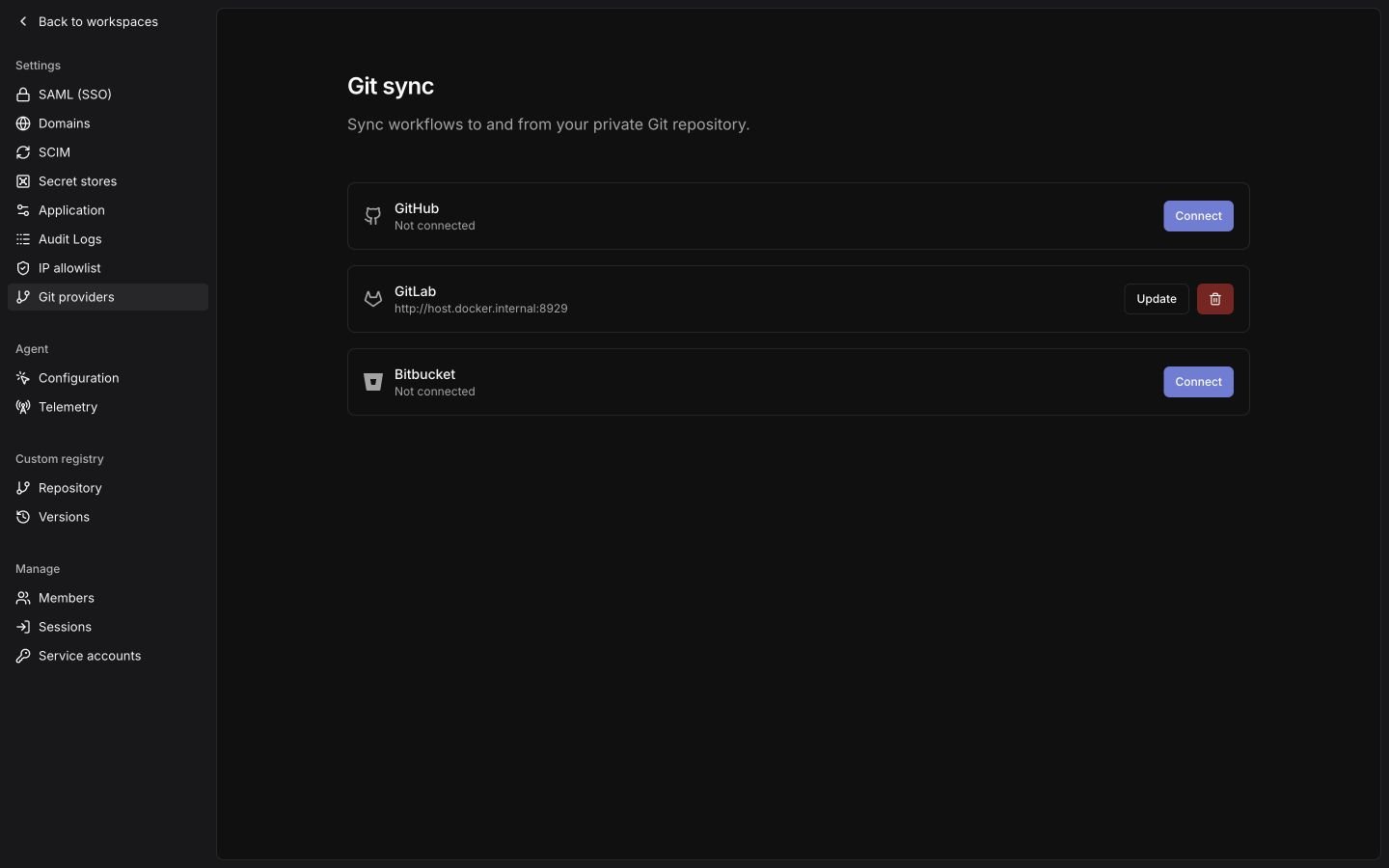
Git providers in the organization sidebar (/organization/vcs).2
Connect your provider
For GitHub, click
Connect, then create a GitHub App through the manifest flow or enter the ID and private key of an existing GitHub App. Install it on the repositories you want to sync.For GitLab, click Connect, then enter your base URL and a project or group access token with both api and write_repository scopes. Before upgrading an existing GitLab connection to durable Git sync, replace an api-only project or group token with one that has both scopes. The worker uses Git-over-HTTPS to push the reviewed commit and the API to manage merge requests. Personal access tokens with api already include Git write access; see GitLab access token scopes.For Bitbucket, click Connect (or Manage for an existing connection) to choose Cloud or Data Center.For Cloud, click Connect, then enter your Atlassian account email and a scoped API token. Select all four permissions:read:repository:bitbucketwrite:repository:bitbucketread:pullrequest:bitbucketwrite:pullrequest:bitbucket
Connect on the Data Center connection with your HTTPS instance URL and an HTTP access token granting repository write permission. Include any port and context path in the instance URL, such as https://bitbucket.example.com:8443/bitbucket.Use Update to rotate the token before it expires. Deleting these credentials disconnects sync across the organization; it preserves workspace resources, repository branches, and custom-registry credentials.Bind a workspace
1
Open workspace Git sync
Open
Git sync in the workspace sidebar, then choose a Provider configured by your organization admin.2
Connect the repository
Paste the repository’s SSH clone URL and click 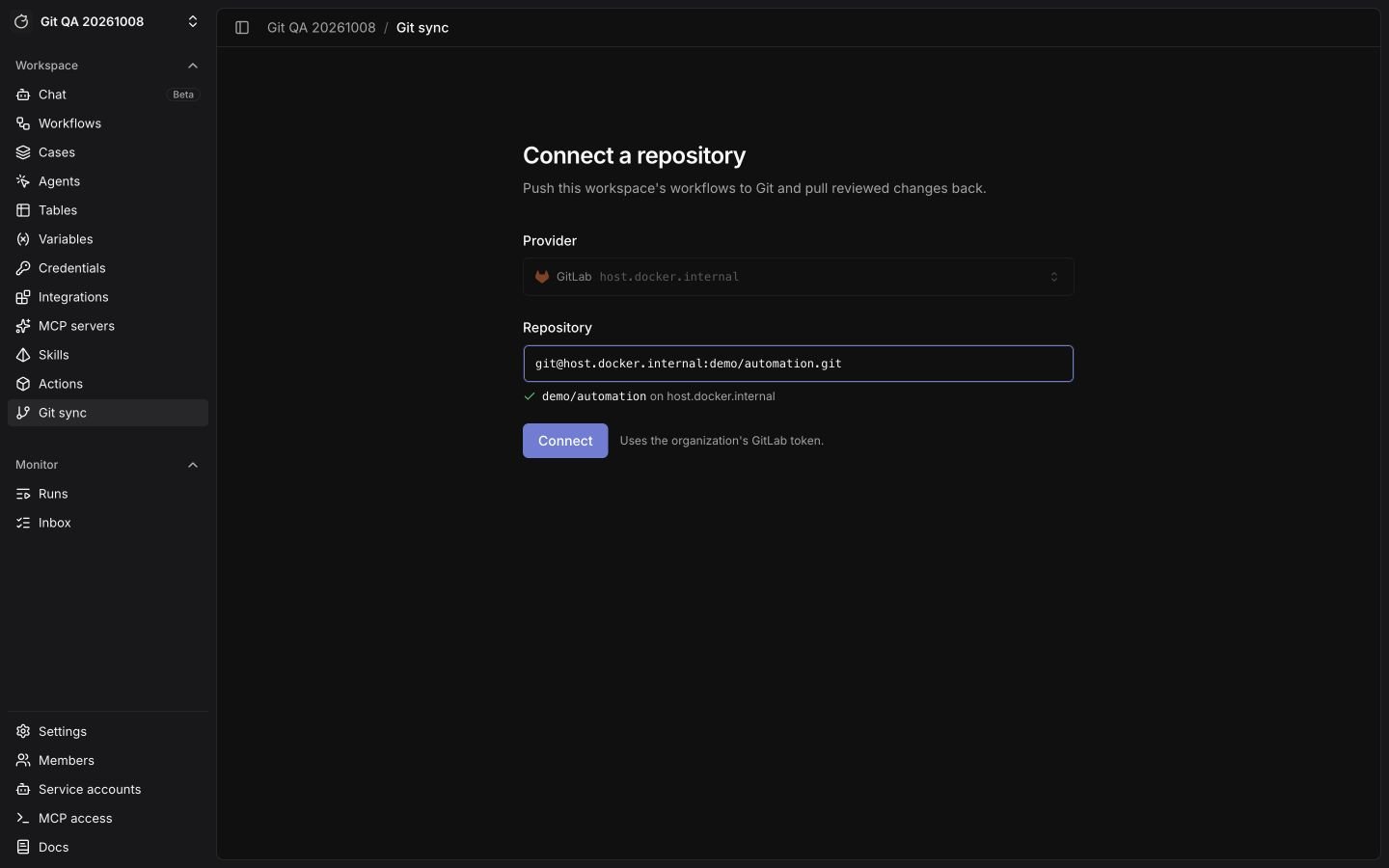
Connect. For GitHub, you can also choose a repository from the GitHub App installation list.Use git@github.com:example-org/example-repo.git, ssh://git@github.com/example-org/example-repo.git, or git+ssh://git@github.com/example-org/example-repo.git. HTTPS repository URLs and bare paths such as example-org/example-repo are not accepted.For Bitbucket Cloud, use git@bitbucket.org:example-workspace/example-repo.git. For Data Center, use git+ssh://git@bitbucket.example.com/PROJECT/repository.git. Its hostname must match the configured instance. Put the port and context path in the organization instance URL; Tracecat uses HTTPS with your HTTP access token for Git and API requests.Change the connection
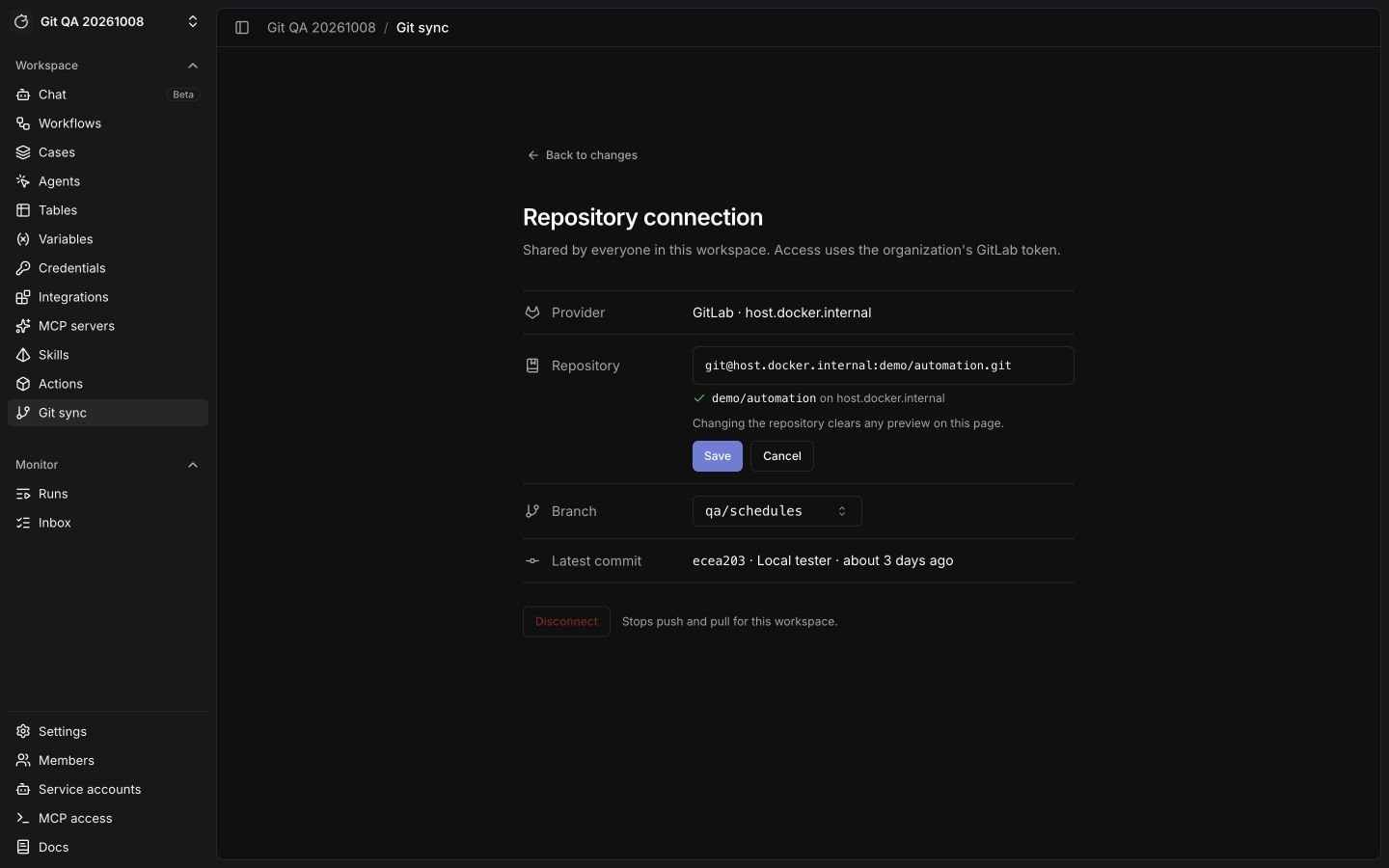
ClickEdit beside the repository name. Use Branch to choose the base branch for new exports and the commit list for pulls. A stored URL ending in @branch pins that branch; a URL without the suffix uses the repository default.
Click Change beside the repository to edit its SSH URL, then Save. Changing the repository or pinned branch clears the current previews. Disconnect stops push and pull until you connect a repository again; it preserves workspace and repository content.
What an export contains
A full export writestracecat.json and one directory per resource type: workflows, agent presets, skills, tables, case fields, case tags, case dropdowns, case durations, variables, and secret metadata. Tracecat excludes schedules.
Tracecat names each resource’s folder or file after its current name: workflows after their title, agent presets and skills after their slug, variables and secret metadata after their environment and name, and other resources after their name. For example, workflows/Triage-alerts/definition.yml, variables/prod/vendor_token.yml, or tables/indicators/table.yml. The id field inside each file identifies the resource, so renaming a resource moves its file on the next push and pullers update the same resource in place. Case tags are the exception: every tag shares one case_tags/_all.yml file, listed under tags.
When two resources of one type share a name, the one that already holds the path keeps it, and Tracecat appends the id to the other: workflows/Triage-alerts-wf_4f2a.../definition.yml. If neither has been pushed yet, the resource with the lower id gets the plain name. A resource keeps its path, suffix included, until you rename it.
Tracecat writes the script of each core.script.run_python action to its own file in the workflow’s scripts/ folder, named after the action’s ref: workflows/Triage-alerts/scripts/enrich_ip.py. The action in definition.yml keeps its other arguments and has no script key. An action with no script yet, such as an empty Python step in a draft, gets no file. Edit the .py file to change the script; a pull reads it back into the action. If you rename an action’s ref in definition.yml, rename its script file too: a pull fails on any .py file in scripts/ that matches no Python action, and names the file. Pushing a workflow deletes every file in its folder that Tracecat does not write, so keep your own notes outside workflows/.
Pulls still read scripts written inline in definition.yml by earlier versions, and an inline script wins over a file for the same action. Instances on earlier versions ignore script files: they import Python actions without their scripts, and their pushes can leave stale script files that fail later pulls.
Keep each id unique: a pull rejects two files with the same id, so duplicate a resource in Tracecat rather than by copying its folder. If two branches rename the same resource and both merge, the repository holds two copies with one id; push that resource from Tracecat to remove the extra copy.
Repositories pushed by earlier versions name each resource’s path by id, such as workflows/wf_4f2a.../definition.yml or case_tags/<id>.yml, or keep one file per case tag. Pulls still read them, and the next push moves each resource it writes to its readable path, or into case_tags/_all.yml, and deletes the old file. A push of selected resources keeps every other tag already in case_tags/_all.yml. A full push replaces the file with your workspace’s tags, so it deletes tags that exist only on the branch. Instances on earlier versions reject resources at readable paths and case_tags/_all.yml, and ignore workflow script files, so upgrade every Tracecat instance that uses a repository before you push to it.
Exports carry configuration, not data:
- Forms export as a
form:block in their workflow’sdefinition.yml, with no submissions. - Tables export their column schema and no rows.
- Variables export key names and no values.
- Secrets export metadata only; a secret file with a
valueorvalueskey fails import. AWS-backed secrets also export their store name, secret name or ARN, and key mapping. If the target workspace has no authorized store with that name, the pull preview asks you to choose one. The choice applies to every secret that uses that store name.
Related pages
- See Push and pull for exporting a workspace as a pull request and pulling a reviewed commit.
- See Security architecture for the GitOps model and how registry versions resolve after a pull.
- See Custom registry for syncing custom actions into the registry, which is separate from workspace Git sync.
- See Roles and permissions for the scopes that gate connecting, exporting, and pulling.