

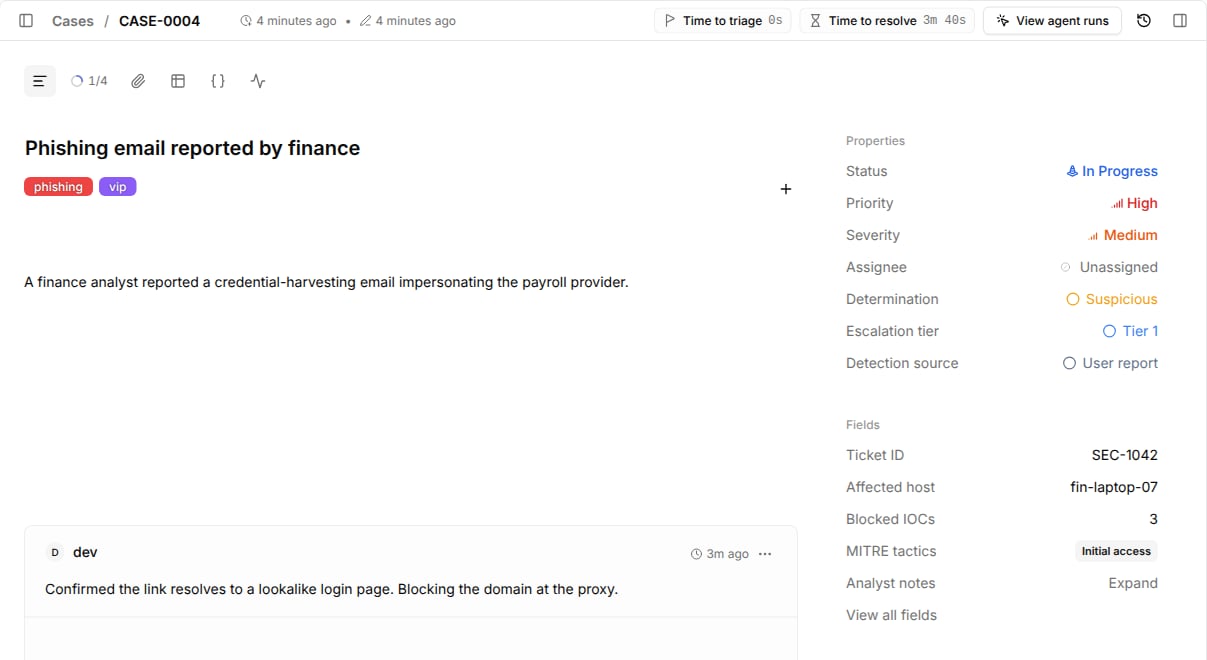
Fields in the case side panel, and your workflows read and write them by reference.
Create a field
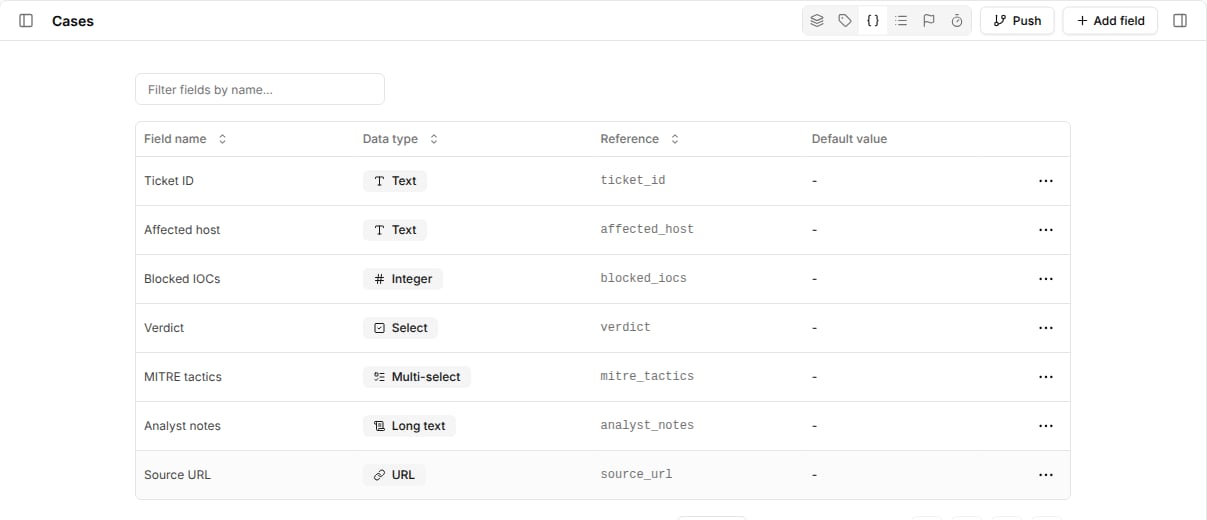
- Go to
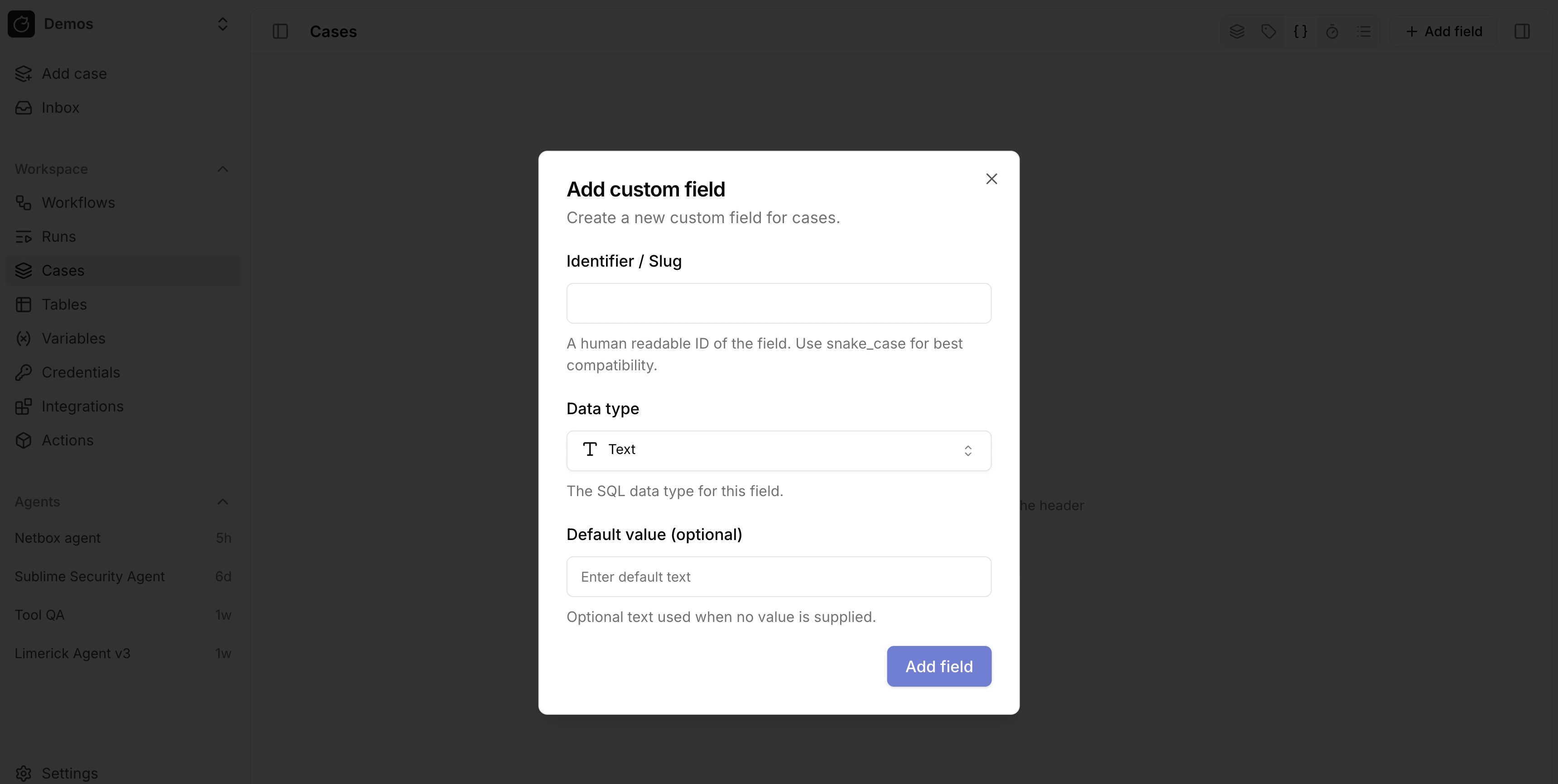
Casesand open the custom fields view from the header toolbar. - Select
Add field. - Enter a
Name. Tracecat derives the field reference from the name and shows it under the input, such asAnalyst verdict→analyst_verdict. - Choose a
Data type. - For
SelectandMulti-select, add the allowedOptions. - Optionally set a default value.
Data types
Long text is stored as TEXT and URL is stored as JSONB; the data type only changes how the case UI renders the value.
Use a dropdown instead of a Select field when you want the values to appear as a case list filter with colors and icons.
Edit values on a case
Open a case and edit values underFields in the side panel.
Select View all fields to see every field, including empty ones.
Field values persist when the case changes status.
Read and write fields from workflows
Pass afields object keyed by field reference to core.cases.create_case or core.cases.update_case.
update_case only changes the keys you pass.
fields_changed in a case trigger.
Related pages
- See Dropdowns to add colored, filterable classifications to cases.
- See Closure requirements to require a field before a case is closed or resolved.
- See Cases for the case action inputs that read and update fields.