

Overview
A tunnel lets actions in one workspace reach hosts on a private network without opening inbound firewall ports. Tracecat uses Pangolin:- A site connector (Newt) runs inside your network and opens an outbound tunnel to the Pangolin server.
- Pangolin grants the tunnel’s machine client access to each allowed target, on its listed TCP ports only. UDP and ICMP are off.
- A tunnel gateway runs the machine client and forwards action traffic. It accepts only short-lived tokens for its own tunnel and workspace, connects only to the tunnel’s allowed targets, and logs every connection.
Requirements
- The
tunnelsEnterprise entitlement. tunnel:readto list tunnels and check status, andtunnel:create,tunnel:update, ortunnel:deleteto manage them. Workspace admins and organization owners and admins hold all four; workspace viewers holdtunnel:read.- A Pangolin server: Pangolin Cloud for Tracecat Cloud, or your own Pangolin deployment for self-hosted Tracecat. See Configure Pangolin for self-hosted Tracecat.
Set up a tunnel from start to finish
This guide takes you from nothing to a workflow that calls an internal URL, using an on-premises Splunk athttps://splunk.internal:8089 as the example. On Tracecat Cloud you only run the site connector inside your network; Tracecat runs the gateway.
Before you start
- The
tunnelsentitlement and thetunnel:createscope in the workspace. - The internal hostname or IP address and TCP port of each service, such as
splunk.internal:8089. - A Linux host inside your network, with Docker or the ability to run a binary, that can resolve and reach every service. It needs outbound access to the Pangolin endpoint,
https://app.pangolin.neton Tracecat Cloud, and no inbound ports. The connector uses TCP 443 and UDP 51820 to the Pangolin endpoint. - The PEM-encoded CA certificate if an internal CA signs the service’s certificate.
1
Create the tunnel
In the workspace sidebar, open Tunnels and select Create tunnel. Enter a name, such as 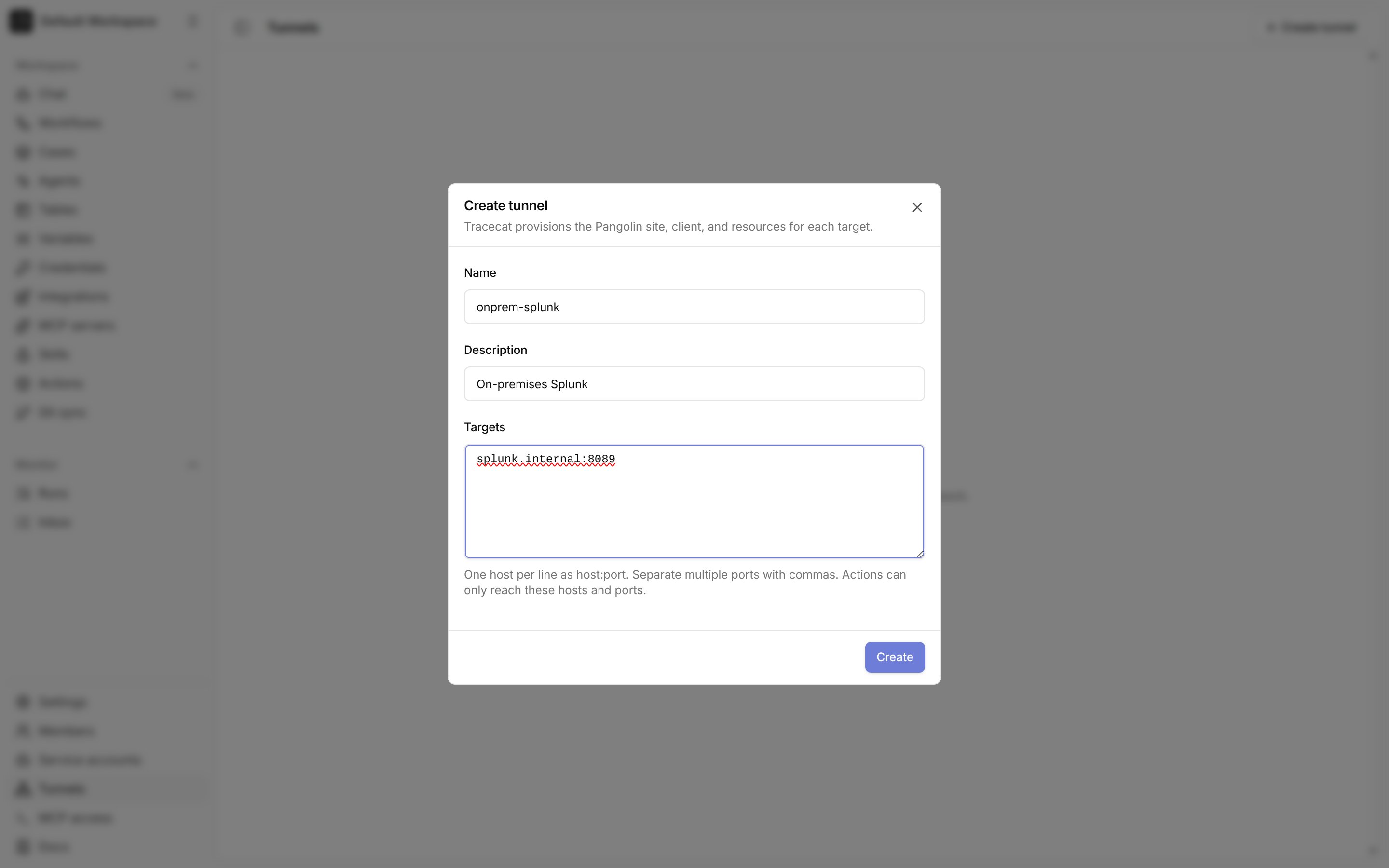
onprem-splunk, and list one target per line as host:port, or host:port,port for several ports. Use the exact hostname your workflows will call; wildcards and CIDR ranges are rejected. Select Create tunnel.2
Copy the site connector credentials
Tracecat shows the site connector command once. It contains the site ID, the site secret, and the Pangolin endpoint. Copy it, and store the secret in your secrets manager.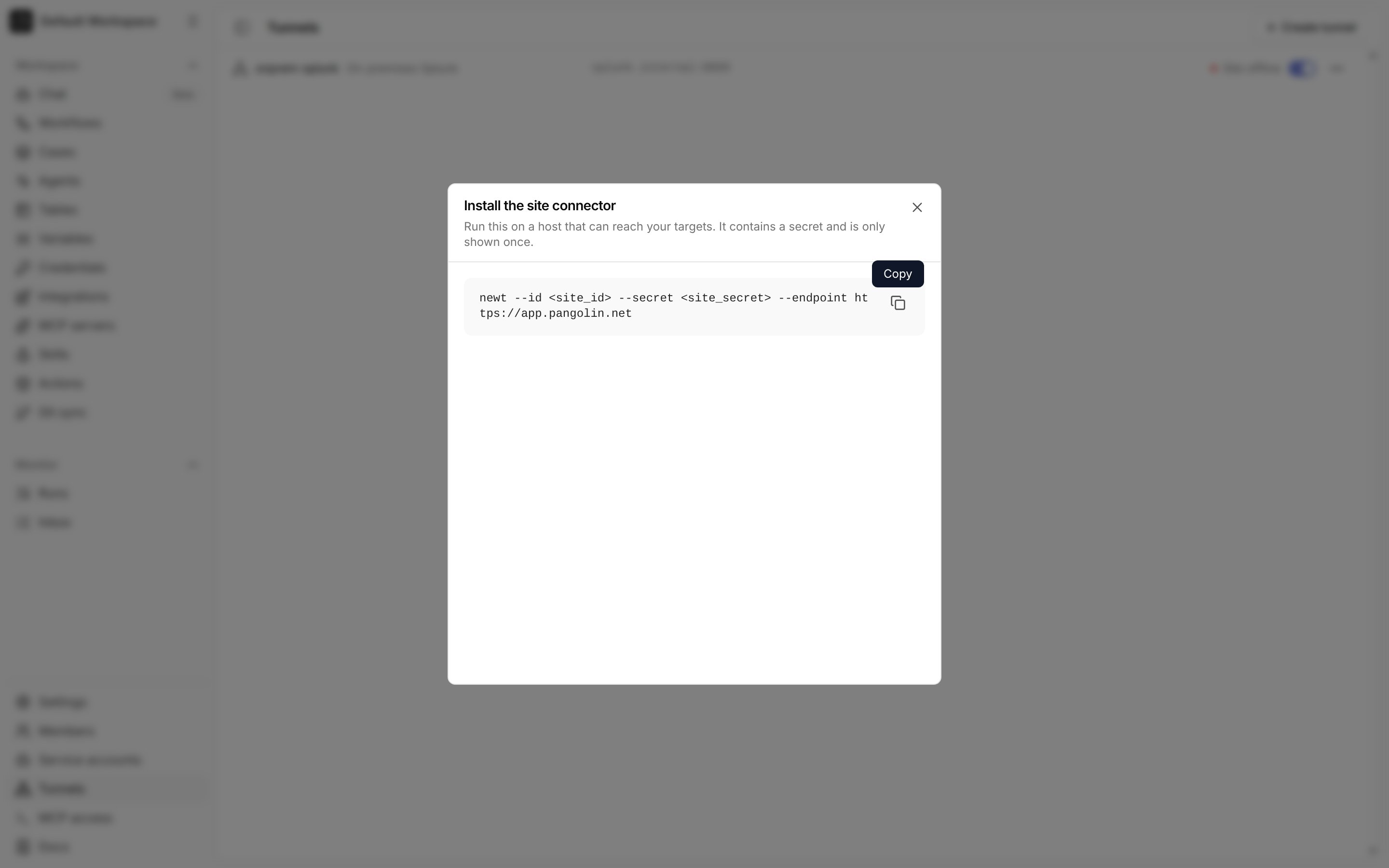
3
Run the site connector on your host
On the host inside your network, run the connector (Newt) with the values from the command. With Docker:Without Docker, install the
newt binary from the Newt releases and run the copied command, newt --id <site_id> --secret <site_secret> --endpoint https://app.pangolin.net, under a service manager such as systemd so it restarts with the host.4
Check the tunnel status
Back on the Tunnels page, the tunnel shows Site online once the connector connects and Gateway ready once Tracecat’s gateway for the tunnel is running. Both must be green before actions can use the tunnel.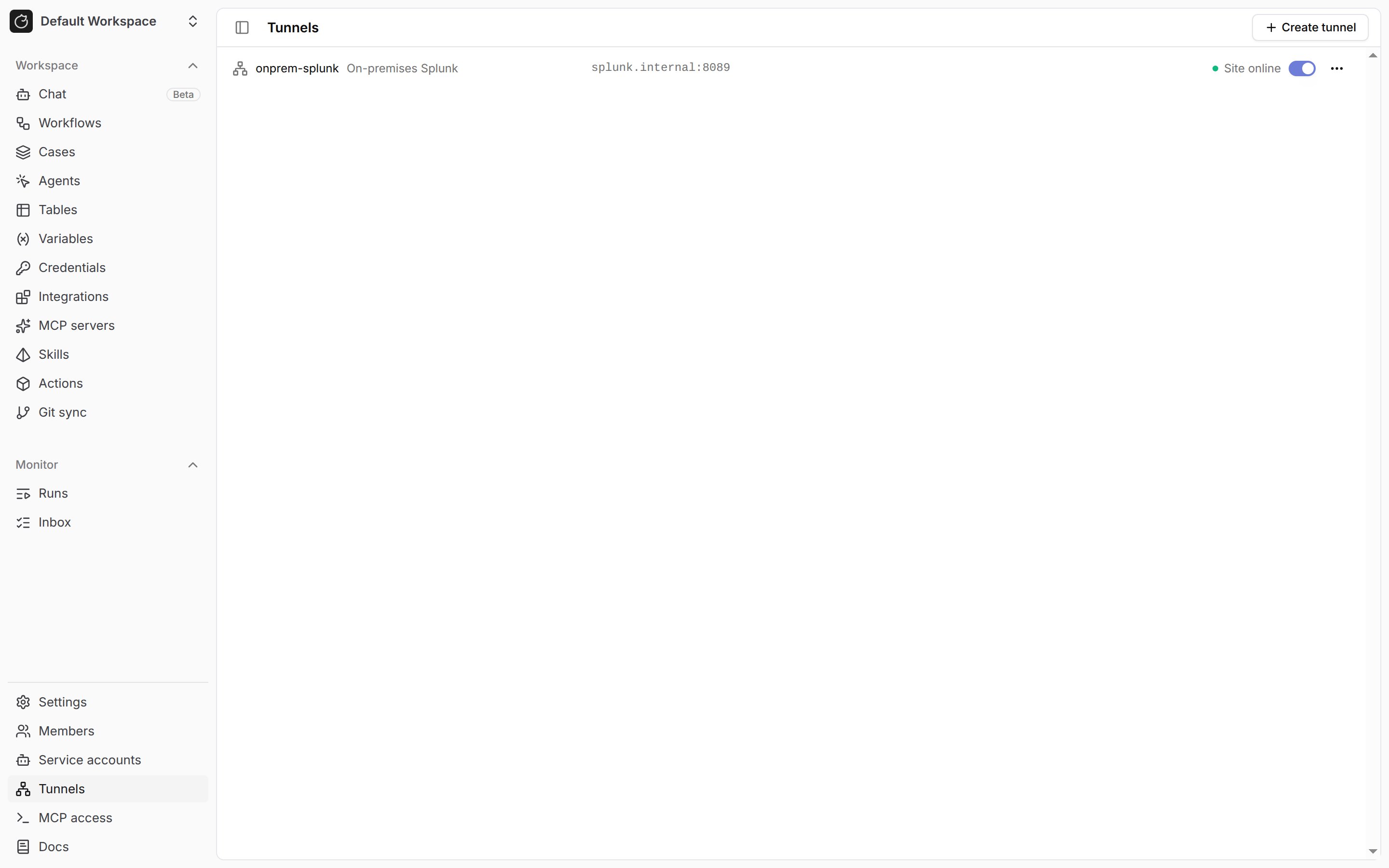
5
Add your internal CA
If an internal CA signs the service’s certificate, open Credentials, select Add credential, name it
ca_cert, set Type to CA certificate, and paste the PEM certificate. See Use TLS with private services.6
Call the internal URL from a workflow
In a workflow, add a HTTP request (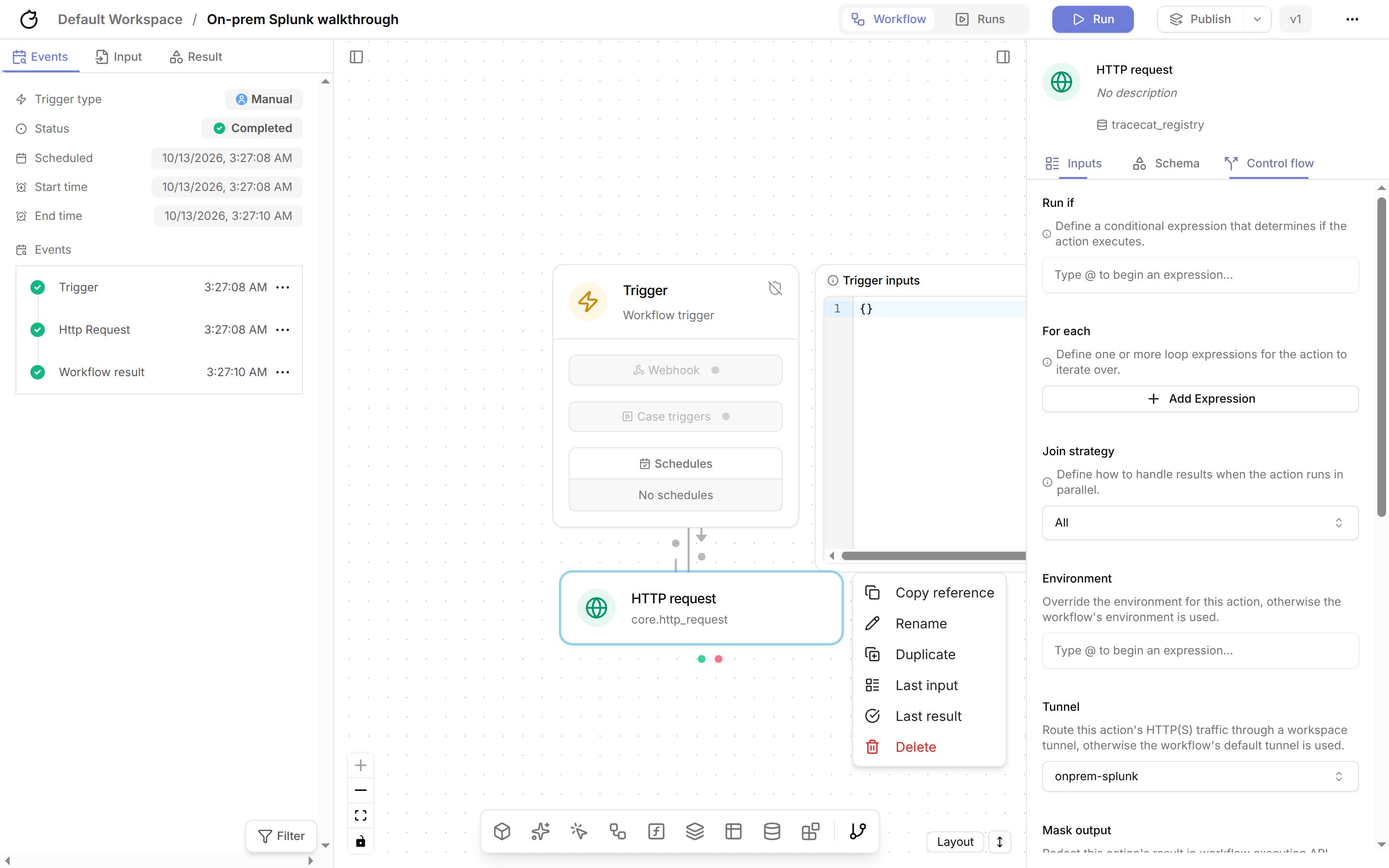
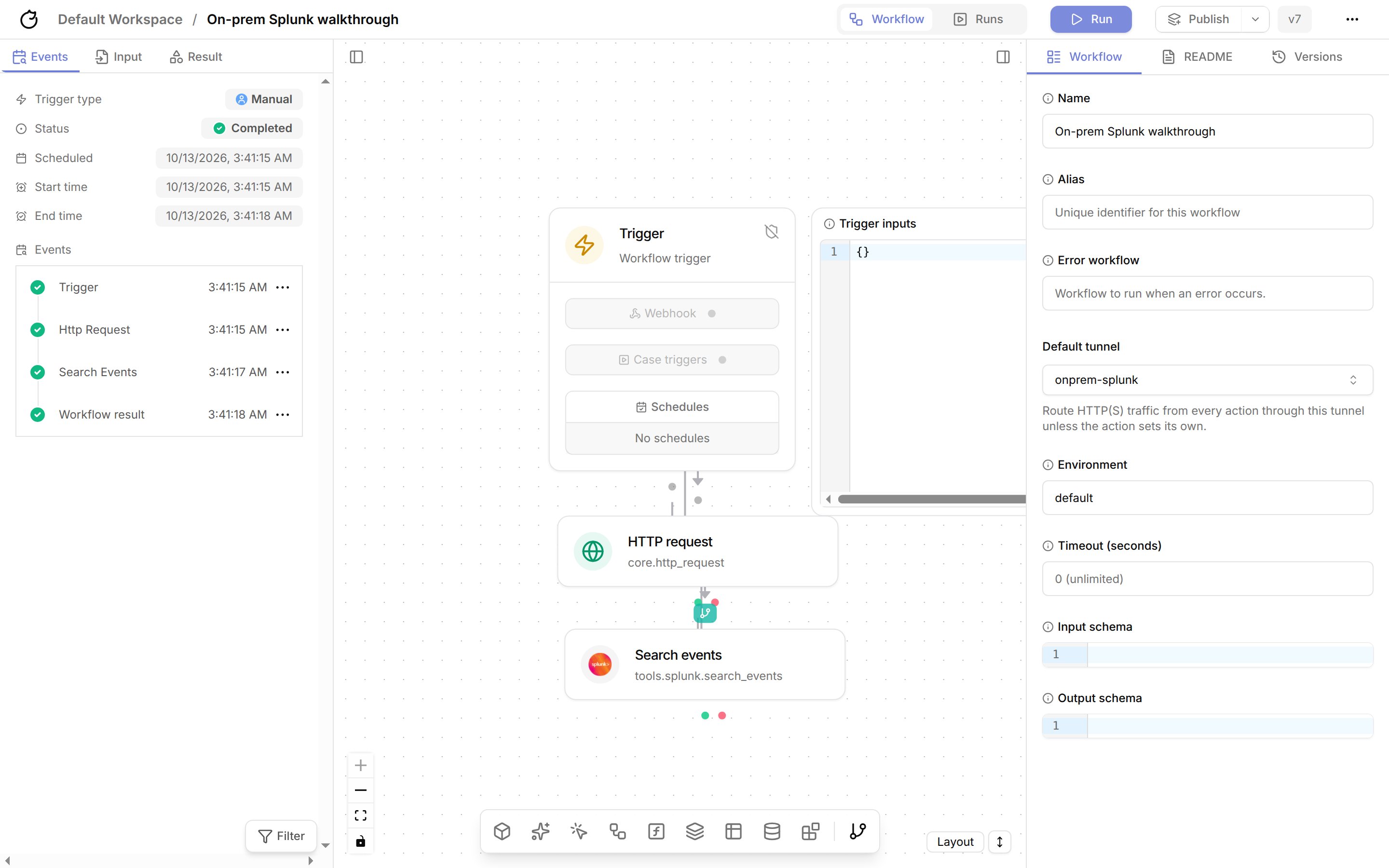
core.http_request) action. Set URL to the internal URL, such as https://splunk.internal:8089/services/server/info?output_mode=json, and Method to GET. In the action’s Control flow tab, set Tunnel to onprem-splunk.7
Run the workflow
Save, then run the workflow. The action’s result shows the response from the internal service.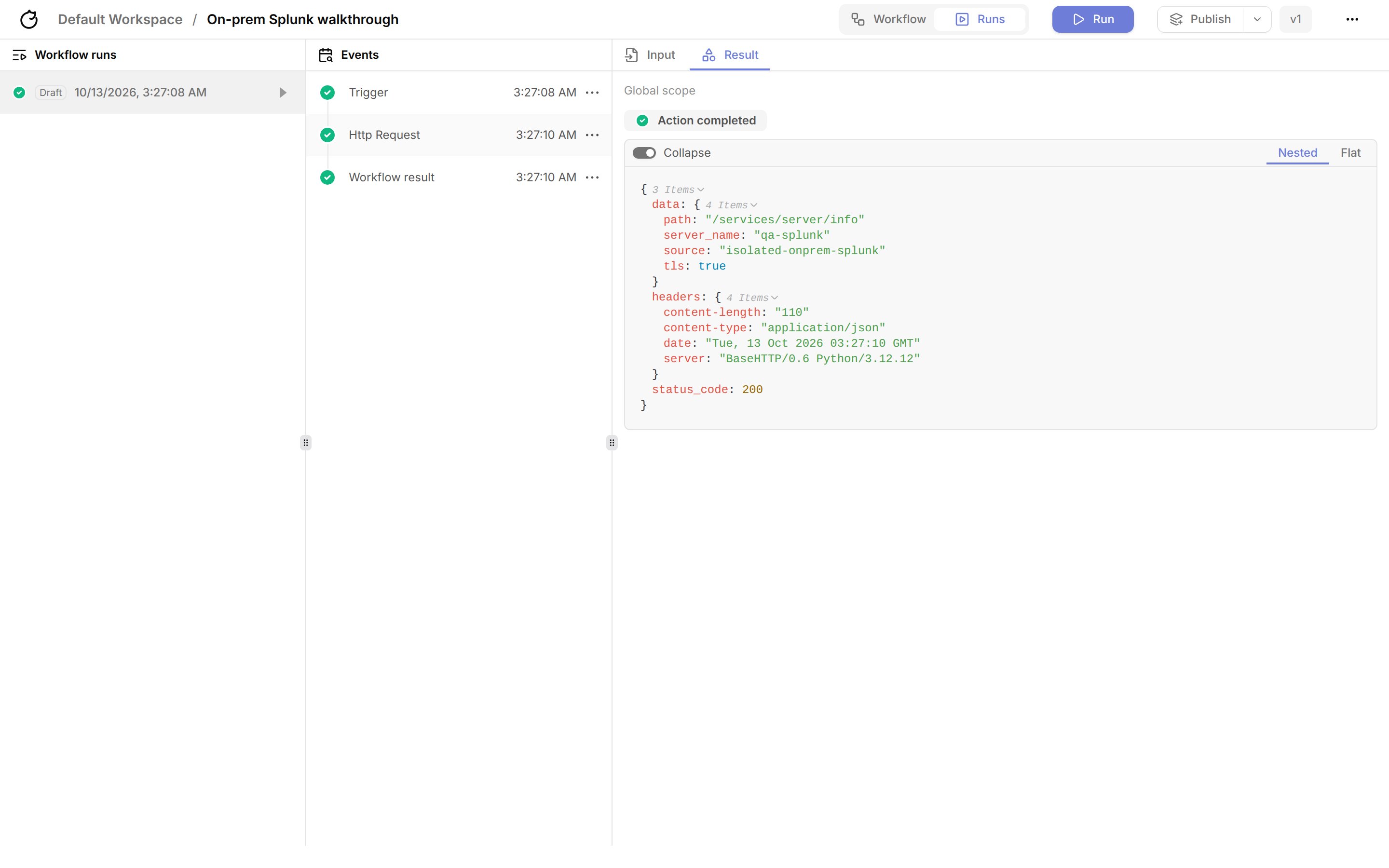
Run a Splunk search through the tunnel
Integration actions that make HTTP requests, such as Splunk: Search events (tools.splunk.search_events), use the tunnel the same way.
1
Add the Splunk credential
In Credentials, add a credential named
splunk with the key SPLUNK_API_KEY set to a Splunk authentication token.2
Add the search action
Add Splunk: Search events. Set
base_url to https://splunk.internal:8089, query to a search that starts with search, such as search index=main | head 10, and the start and end times. In the Control flow tab, set Tunnel to onprem-splunk, or rely on the workflow’s Default tunnel.3
Run the workflow
The action returns the search results.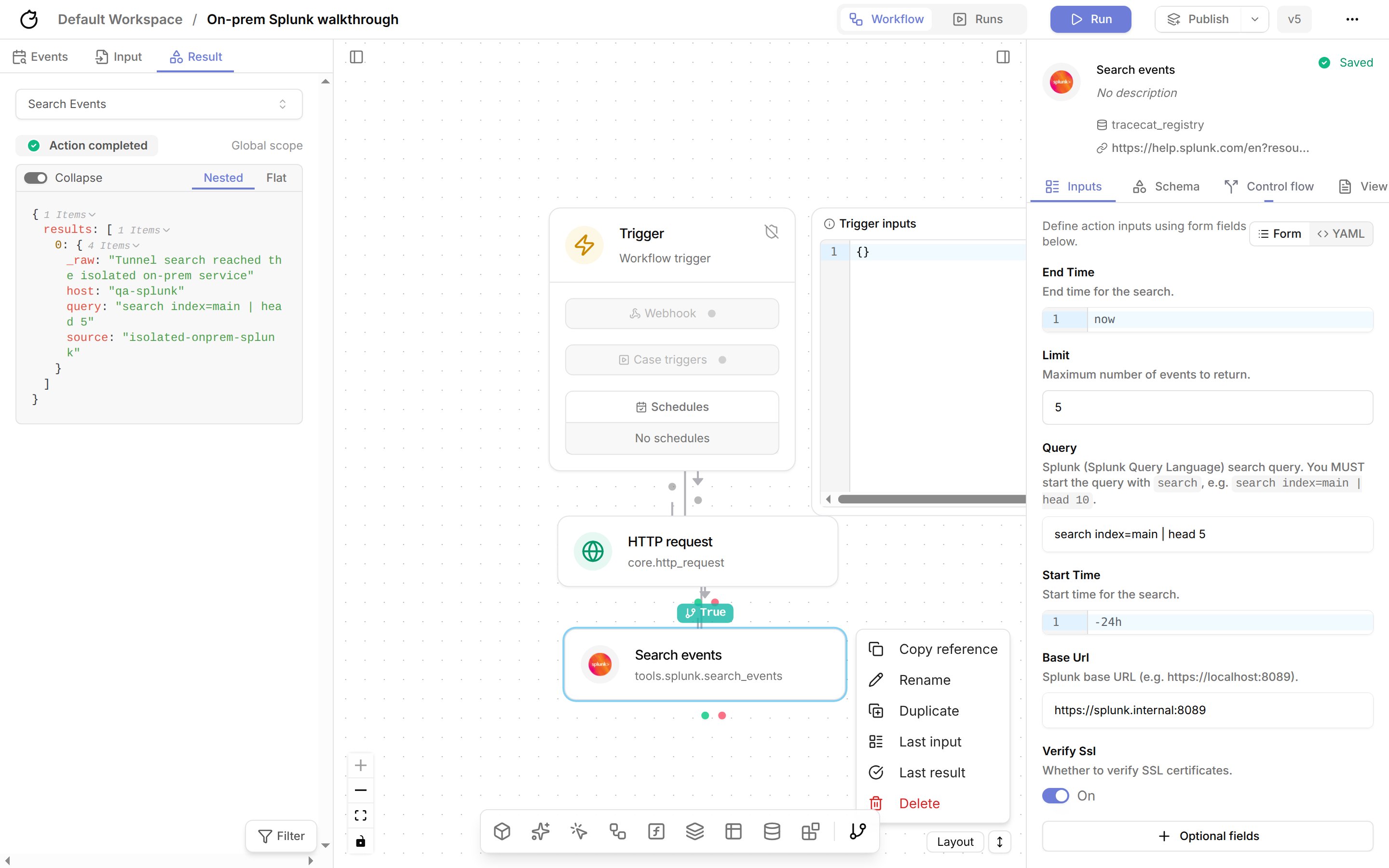
Troubleshoot
Create a managed tunnel with the API
Call the API with a service account API key and passworkspace_id as a query parameter on every request.
1
Create the tunnel
List every private host the workspace may reach, with its exact TCP ports:
host is an exact hostname or IP address; wildcards and CIDR ranges are rejected. Each target takes 1 to 64 unique ports, and a tunnel takes up to 100 targets.Tracecat creates a Pangolin site, one machine client for the tunnel, and one private resource per target granted only to that client. If any step fails, Tracecat deletes what it created and returns 502.2
Save the site credentials
The Store
201 response returns the site credentials once:site_secret in your secrets manager. Tracecat does not return it again.3
Install the site connector
Run the connector on a host inside your network that can reach every target:To run the binary directly, use
site_install_command. The connector needs outbound access to the Pangolin endpoint only.4
Check the site status
site_online turns true once the connector connects.Bring your own Pangolin
If you already run Pangolin and manage the site, resources, and access yourself, create a machine client in Pangolin, grant it only the resources Tracecat needs, and register it:endpoint must use https. Tracecat encrypts client_secret and never returns it. Keep allowed_targets in step with the Pangolin resources; Tracecat enforces both, so a port must appear in each.
Route actions through a tunnel
Set the tunnel in the action’s Control flow tab, or set Default tunnel in the workflow settings to route every action. An action’s own tunnel overrides the workflow default. In a workflow definition, usetunnel on the action or config.tunnel:
tunnels entitlement when you save, publish, and run the workflow. At runtime, the executor issues a short-lived token for the tunnel, sets HTTP_PROXY and HTTPS_PROXY to the tunnel’s gateway, and limits the action’s network to that gateway. The action fails if the tunnel is disabled or its gateway isn’t available; it never falls back to direct egress. The gateway’s allowed targets decide which hosts the action may reach, including private addresses.
Subflows, scatter, gather, loops, AI agent actions, and core.script.run_python reject an explicit tunnel and ignore the workflow default.
Run the tunnel gateway
Each tunnel has one gateway. On Kubernetes withTRACECAT__TUNNEL_GATEWAY_BACKEND=kubernetes, the api service runs gateways for you: it creates a tunnel-<id> Secret, Deployment, and Service per tunnel in TRACECAT__TUNNEL_GATEWAY_NAMESPACE, issues the gateway key for managed tunnels, scales disabled tunnels to zero, restarts the gateway after a key rotation, and deletes the objects when you delete the tunnel. A reconcile loop recreates missing objects and removes orphaned ones every minute. The Tracecat Helm chart sets this up with tunnels.enabled.
With the default TRACECAT__TUNNEL_GATEWAY_BACKEND=none, such as on Docker Compose, you run each gateway yourself with the ghcr.io/tracecathq/tracecat-tunnel-gateway image. It needs the tunnel’s gateway key, which signs the tokens actions present:
NET_ADMIN and /dev/net/tun, so run gateways apart from executors and allow only executors to reach them. The gateway needs outbound TCP 443 and UDP 21820 to the Pangolin endpoint.
--upstream-dns set to the container’s resolver, then the proxy. Set PANGOLIN_UPSTREAM_DNS to use a different resolver. The proxy reads:
The gateway loads the tunnel’s workspace and allowed targets from the Tracecat API with its gateway key, and refreshes them every 15 seconds. Within one refresh of you disabling or deleting the tunnel, issuing a new gateway key, or removing a target, the gateway rejects new requests and closes the affected open connections. After a key rotation, restart the gateway with the new key; Tracecat-run gateways restart automatically. If the gateway can’t reach the API for 60 seconds, it stops accepting requests until the API is back.
The gateway resolves each target once and dials the resolved address. It refuses loopback, link-local, cloud metadata, multicast, and unspecified addresses, the Tracecat API’s own addresses, and any CIDR in
TRACECAT_TUNNEL_GATEWAY_BLOCKED_CIDRS, even when a hostname in the allowed targets resolves to one of them. On Kubernetes, the api service passes TRACECAT__TUNNEL_GATEWAY_BLOCKED_CIDRS to every gateway; set it to the cluster’s pod and service ranges.
The gateway answers 407 for a missing, expired, or wrong-tunnel token, 403 for a host or port outside the allowed targets, a blocked address, or a revoked tunnel, 503 while it can’t load the tunnel’s policy, and 504 when Pangolin does not reach the target. It never falls back to direct egress.
Use TLS with private services
Allowed targets limit which host and TCP port a connection opens to, not which application answers on it. The gateway relays TLS without decrypting it, so a client can pick another virtual host on the same IP address and port with SNI or theHost header. Don’t rely on allowed targets to isolate applications behind a shared reverse proxy; give each one its own address or port, or restrict access at the proxy.
HTTPS through a tunnel stays encrypted end to end. The gateway relays the TLS connection without decrypting it, and the action verifies the server certificate against the hostname in the URL, such as splunk.internal. Issue the certificate for the hostname you list in allowed_targets.
If an internal CA signs the certificate, add the CA to the workspace:
1
Create a CA certificate credential
In the workspace, open Credentials and select Add credential. Name the secret 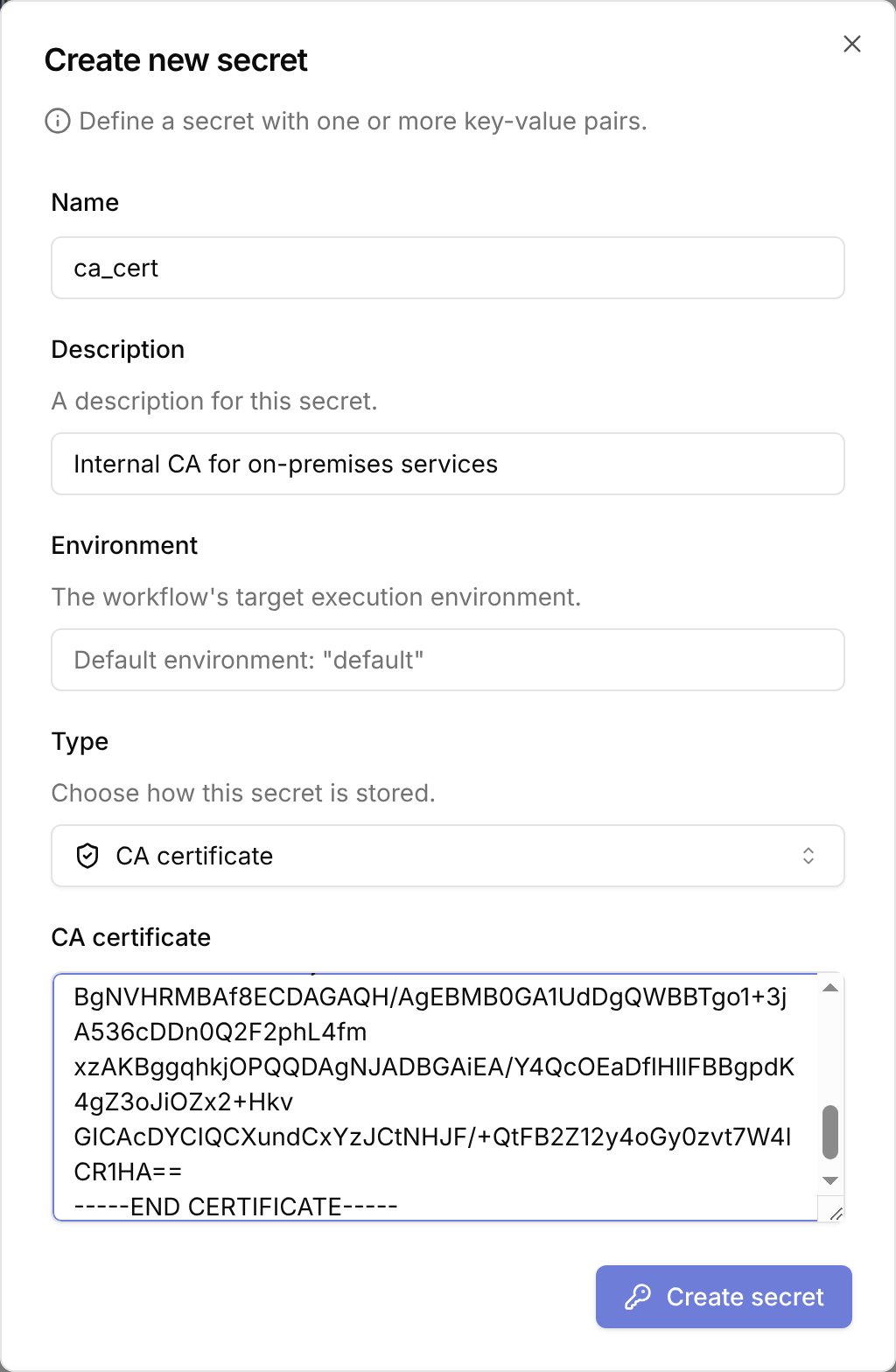
ca_cert, set Type to CA certificate, paste the PEM-encoded CA certificate, and select Create secret. Tracecat stores it as the CA_CERTIFICATE key.2
Keep certificate verification on
core.http_request, core.http_poll, and core.http_paginate load the ca_cert credential automatically. Leave verify_ssl set to true; requests then fail if the certificate does not chain to your CA or does not match the hostname.mtls with the mTLS certificate + key type. See Secrets for every credential type.
Plain http:// requests are encrypted inside the Pangolin tunnel, but not between the site connector and the target, and the gateway can read them. Prefer https:// for anything that carries credentials.
Manage tunnels
- List tunnels with
GET /tunnelsand read one withGET /tunnels/{tunnel_id}. - Rename, describe, or disable a tunnel with
PATCH /tunnels/{tunnel_id}. Managed tunnels reject changes toendpoint,client_id,client_secret, andallowed_targets; create a new managed tunnel to change targets. - Delete a tunnel with
DELETE /tunnels/{tunnel_id}. For managed tunnels, Tracecat deletes the Pangolin resources, machine client, and site first. If Pangolin cleanup fails, the request returns502and keeps the tunnel so you can retry. Stop the site connector afterwards.
Configure Pangolin for self-hosted Tracecat
Tracecat Cloud manages Pangolin for you, so this section applies only to self-hosted Tracecat. Managed tunnels provision Pangolin through its Integration API.1
Enable the Integration API
Deploy Pangolin separately and enable its Integration API. The API base URL ends in
/v1.2
Create an organization API key
In the Pangolin dashboard, open your organization’s API keys and create a key with these permissions:
- Sites: pick site defaults, create, get, and delete.
- Clients: pick client defaults, create, get, and delete.
- Private resources: create, get, delete, and list resource clients.
3
Set the Tracecat environment variables
Set these on the Managed tunnels stay off until all four are set. See Environment variables.
api service and restart it:Related pages
- See HTTP for calling private services with
core.http_request. - See Python UDFs for keeping custom actions compatible with tunnels.
- See Roles and permissions for which built-in roles hold the
tunnel:*scopes.