

Overview
A Tracecat account authenticates a person, and an organization membership decides what that account can open. Registration and SSO create accounts. Invitations and superadmin provisioning create memberships.First login
Set the first superadmin’s email before anyone signs in. Until it is set, nobody can register, and the first account must match it. It takes one case-sensitive email address, so use the exact casing your identity provider sends.- Basic auth: sign up with that email, then log in.
- SSO: log in through your identity provider. Tracecat creates the account on first login.
Registration
Self-service registration needsbasic in TRACECAT__AUTH_TYPES. Without it the sign-up page shows Sign up unavailable. OIDC and SAML create the account on the first successful sign-in.
TRACECAT__AUTH_ALLOWED_DOMAINS is a comma-separated list of email domains permitted to create an account, and a blank value permits every domain. Tracecat applies the same list on every OIDC sign-in. SAML sign-in checks the organization’s configured domains first. When none are configured, a single-tenant deployment falls back to this list and a multi-tenant deployment rejects the sign-in. An existing basic-auth account signs in with its password regardless of the list.
The first superadmin bypasses the domain list. A blocked email fails with the message Please enter a valid email address.
A password must be at least TRACECAT__AUTH_MIN_PASSWORD_LENGTH characters long, default 12.
Joining an organization
Registration and SSO create the account without an organization membership. Until an invitation or a superadmin grants one, the user seesNo organization access yet after sign-in. That screen lists any pending invitations for their email and a Sign out button.

organization-owner at registration. With TRACECAT__EE_MULTI_TENANT=true, no account joins an organization automatically at registration. In both modes, registering through an invitation link joins that invitation’s organization.
Invite a member
Inviting requiresorg:member:invite, which organization-owner and organization-admin hold.
1
Open the invite dialog
Open
Members in the organization sidebar (/organization/members) and click Invite member.2
Enter the email and role grants
Enter the invitee’s 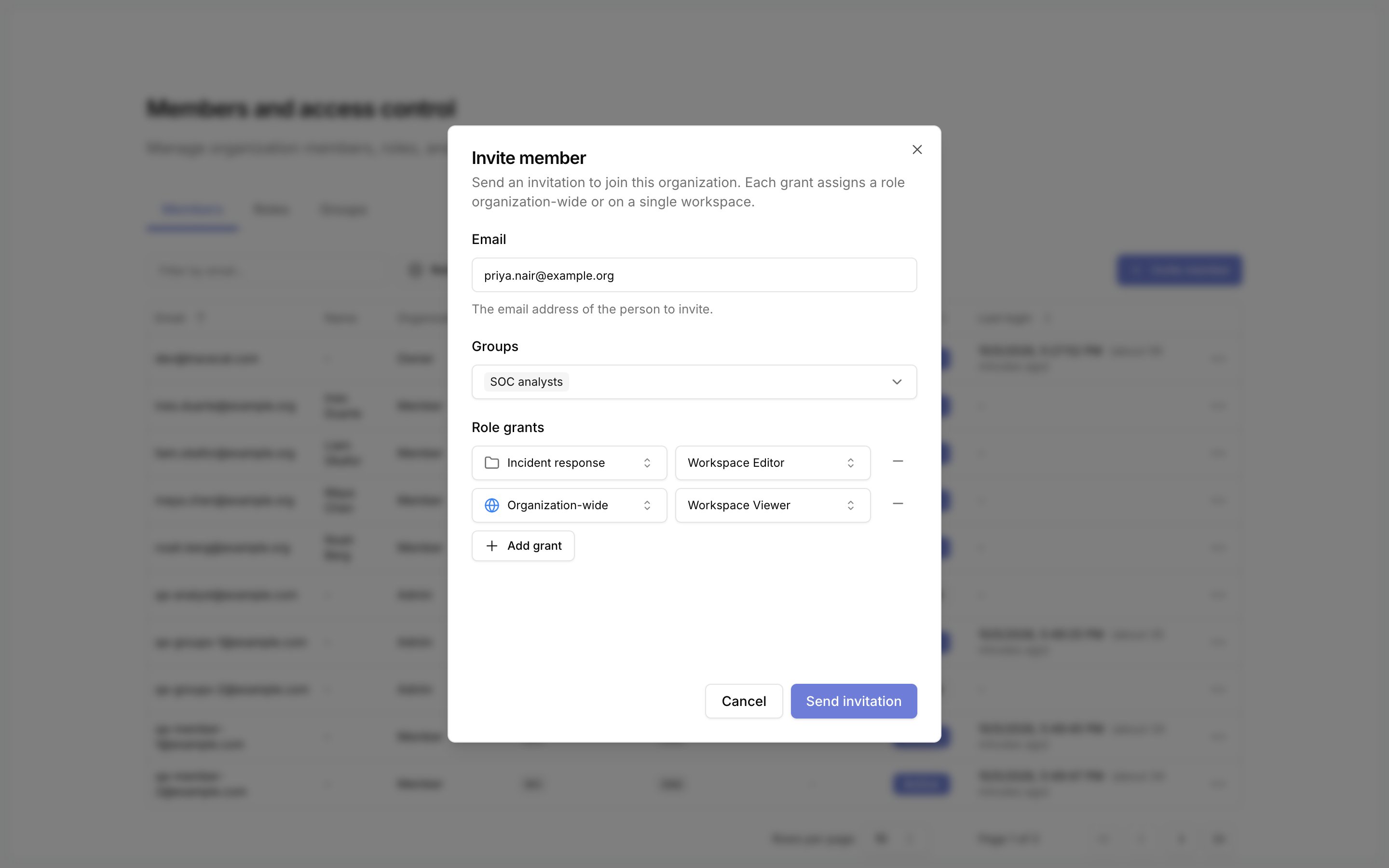
Email. Under Role grants, pick a scope and a role for each row. The scope is Organization-wide or one workspace. Click Add grant for another scope.Groups appears with custom roles and groups.3
Send the invitation
Click
Send invitation. The member appears in the table with the status Invited. The invitation stays valid for 7 days.Share or revoke an invitation
Tracecat emails the invitation when SMTP is configured. Open the invited member’s row menu for these actions.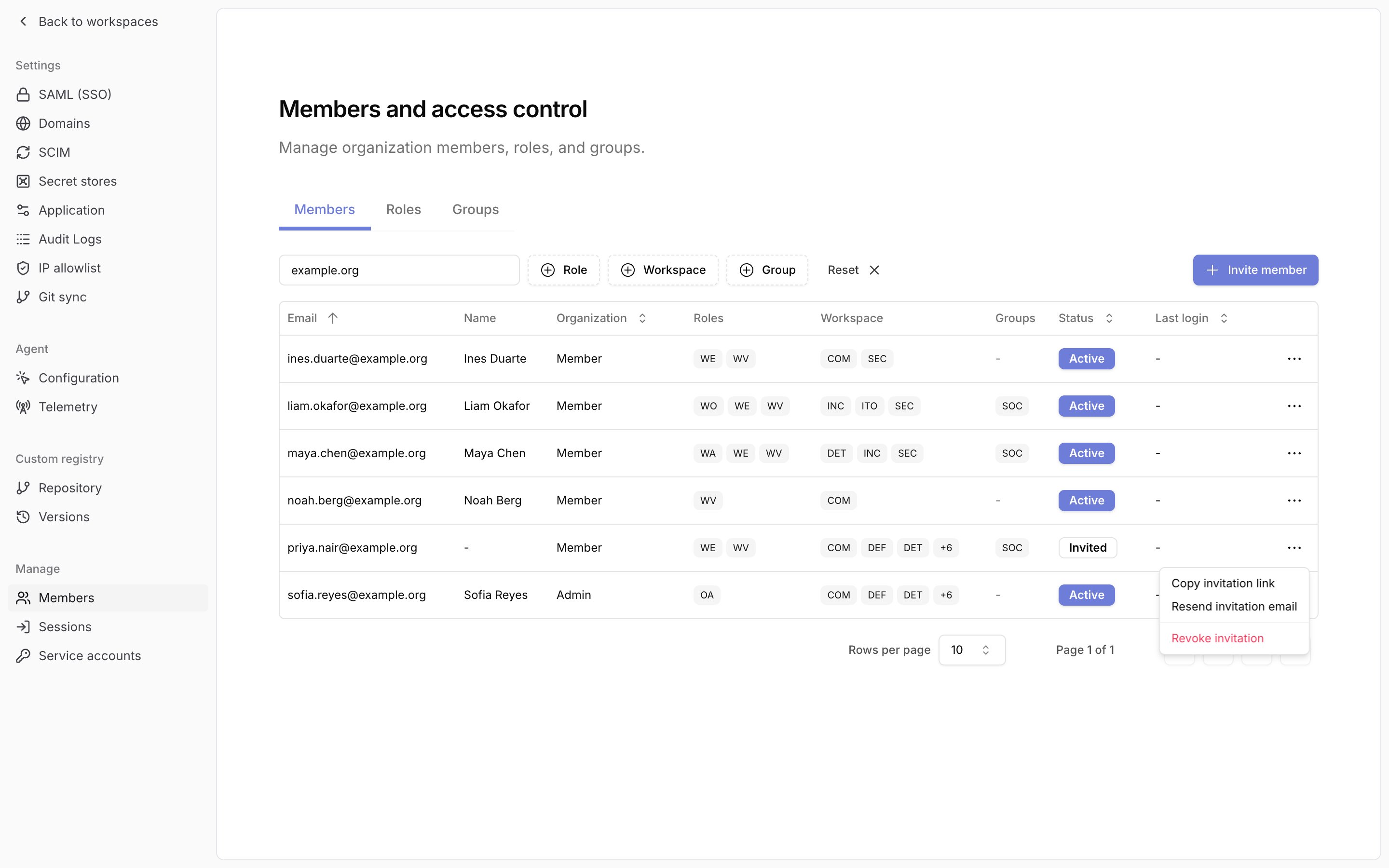
Accept an invitation
1
Open the link
The invitee opens the invitation link and signs in, or signs up with basic auth. A sign-up started from the link accepts the invitation during registration.
2
Accept
The signed-in email must match the invitation. A used, revoked, or expired link shows
Invitation already accepted, Invitation revoked, or Invitation expired./workspaces. A role the user already holds at a scope stays unchanged.
A platform admin console invitation with the Organization member role grants the baseline scopes and no role.
Workspace membership
Add member needs workspace:member:invite or org:member:invite. With org:member:invite, an email outside the organization gets an organization invitation with workspace-editor on that workspace.
Related pages
- See Basic for email-and-password sign-in, the minimum password length, and changing a password.
- See Roles and permissions for what each built-in role can do and how to review and change member roles.
- See Custom roles and groups for inviting a member into groups.
- See Environment variables for
TRACECAT__AUTH_SUPERADMIN_EMAIL,TRACECAT__AUTH_ALLOWED_DOMAINS, andTRACECAT__AUTH_MIN_PASSWORD_LENGTH.